
See your DICOM files
right in Windows
DICOM Explorer draws CT, MR, X-ray, ultrasound and other DICOM images in Windows File Explorer, as thumbnails, in the preview pane and in more than 70 Details columns. Its app opens a CD, a folder or an archive by study and series, steps through a series, shows it in three planes and in 3D, measures, lists every tag, and exports pictures, PDF, video, 3D models and copies without personal data. Nothing ever leaves your PC.
Not a medical device. DICOM Explorer is made for viewing, organizing, converting, de-identifying and sharing DICOM images, for education, research, software development and personal use. It must not be used for diagnosis, treatment or any clinical decision. See Intended Purpose.
Installation
DICOM Explorer is distributed through the Microsoft Store as a single package that installs both the desktop app and the Windows Explorer shell extensions.
Get DICOM Explorer
Install once and both the app and the Explorer thumbnails, preview pane and file properties are set up automatically.
⬇ Get it from the Microsoft StoreNo configuration needed. After installation, thumbnails and the preview pane work in Windows Explorer. Just open a folder of DICOM files. The file properties and the DICOM columns come with Better Shell Integration.
What gets installed
DICOM Explorer App
A desktop app to open, view, measure and export your files, and to browse a CD by study. Accessible from the Start menu.
Shell Extensions
Background components that draw thumbnails, the preview pane and the file properties in Windows Explorer. They run on their own, no action needed.
An optional Better Shell Integration (administrator required) adds the file properties, DICOM Explorer's own Details columns and a Windows imaging decoder, and keeps thumbnails and previews working when another app declares the same extensions. Turn it on from Settings, Windows Explorer, see Better Shell Integration.
The first time it starts, DICOM Explorer shows what it is made for, and asks you to confirm with I understand.
The Interface
DICOM Explorer has a simple left-hand navigation. Open a file with Open a file..., by dragging it onto the window, or from Windows Explorer.
Opening a file
- Click Open a file... on the Home page, or press Ctrl+O, and pick a file.
- Drag and drop a file from Windows Explorer onto the window.
- In Windows Explorer, right-click a file and choose Open with DICOM Explorer, or double-click it when DICOM Explorer is the default app. The app opens straight on the Image page.
- For a CD, a folder or an archive, use the Studies page.
When the file belongs to a series, DICOM Explorer looks for the other images of the series in its folder. Looking for the rest of the series… shows in the bar while it does, and the series slider, MPR and the 3D view become available once it is done.
Single instance: the app runs as a single window. Opening a file from Explorer while it is open brings the window to the front and loads the new file. The view, the window and the colors you picked stay as they are for the new file.
Windows Explorer Integration
Once DICOM Explorer is installed, Windows Explorer gains three capabilities for DICOM files.
Thumbnails
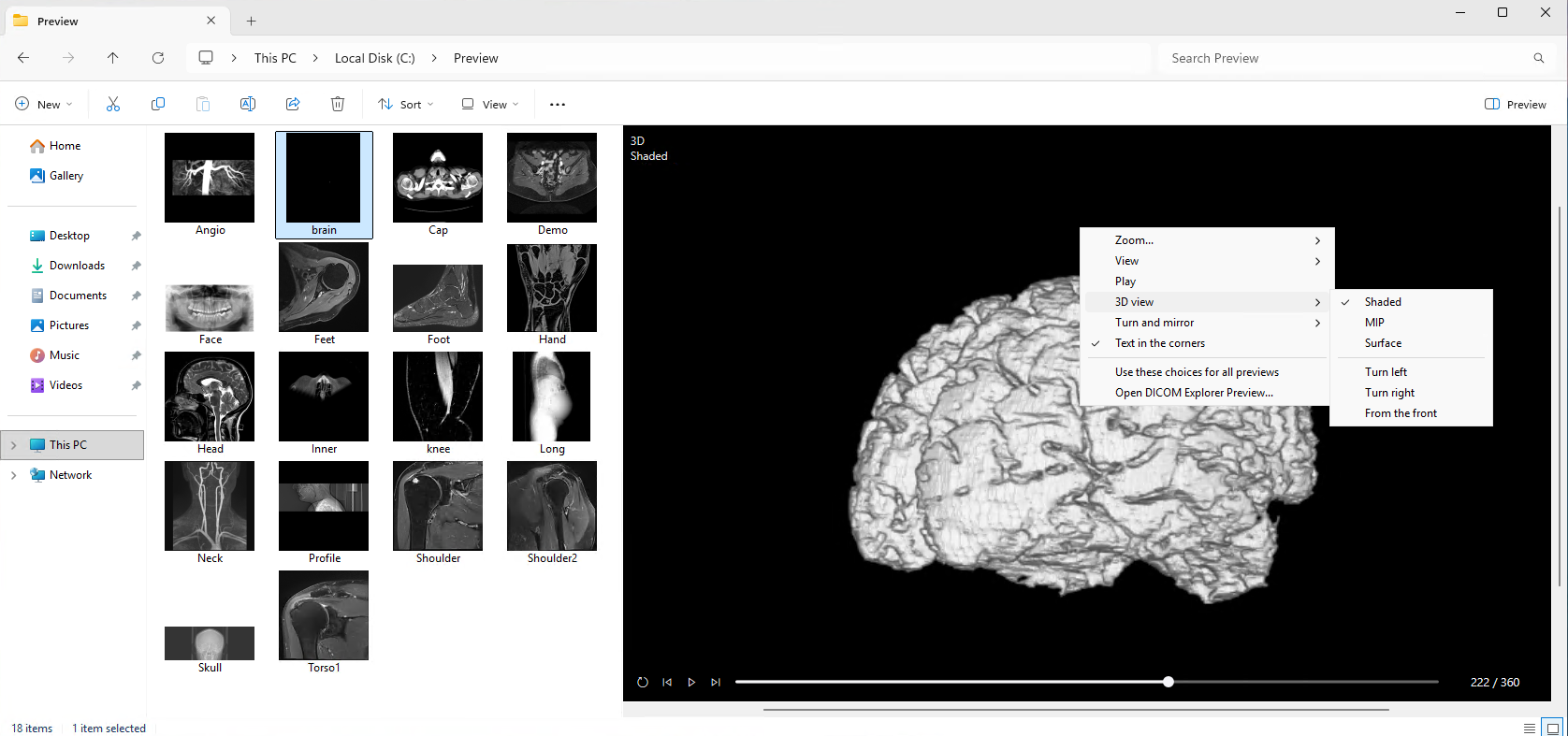
Each file shows its image, drawn with the window the file asks for, so a folder of images reads at a glance. A multi-frame image shows its first frame, or its middle one if you choose so in Settings.
Preview Pane
Select a file and press Alt+P (or View, Preview pane) to see it, step through its series, play it, see it in planes and turn it in 3D.
File Properties
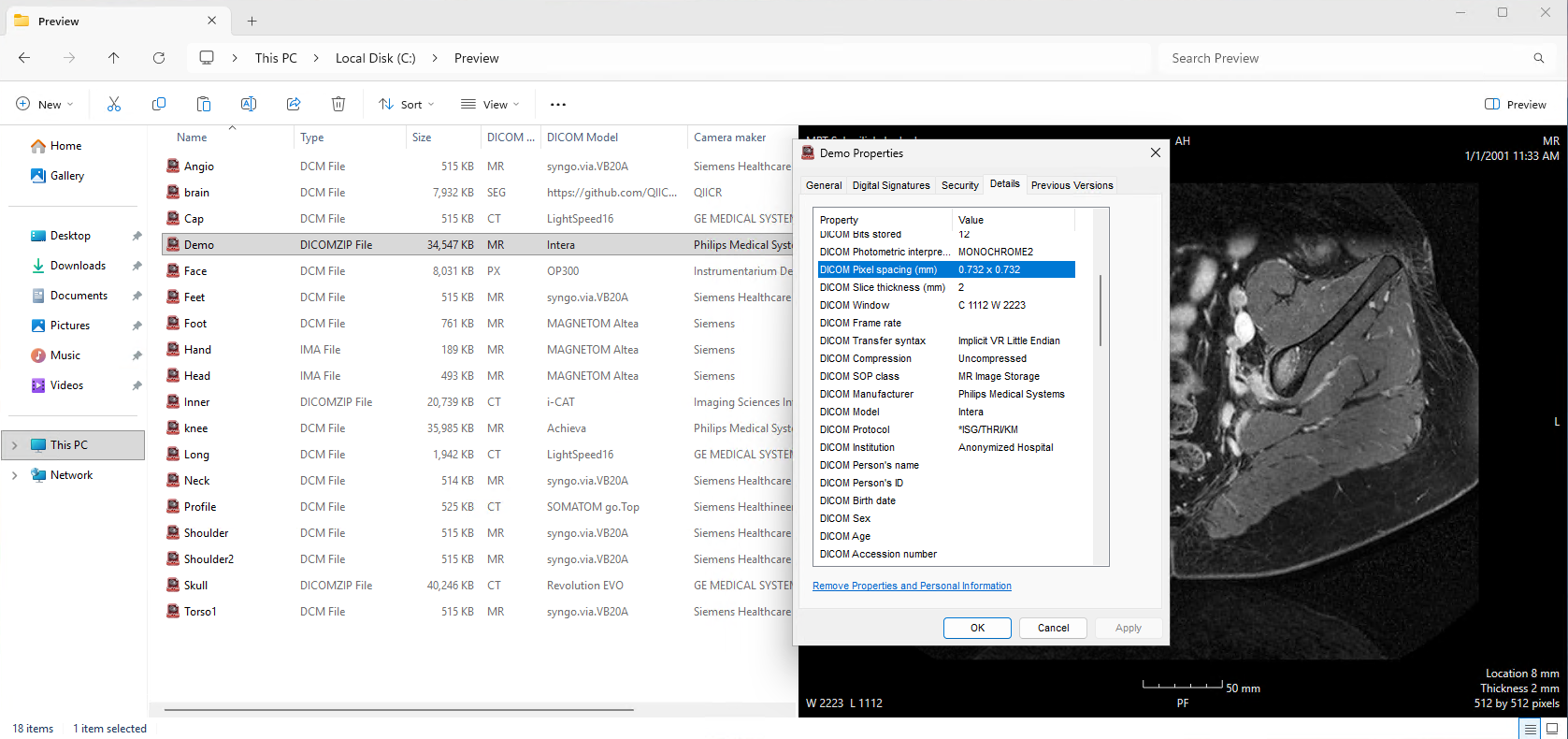
With Better Shell Integration installed, dimensions, modality, study, series, device and the way the file is stored appear in Explorer's Details pane, tooltips and the file's Properties, Details tab, and as more than 70 columns, all named DICOM something.
Using the Preview Pane
The pane opens on the file's image. Once a file of a series is shown, the pane reads the rest of the series, and its View menu offers the planes and the 3D view.
| Action | How |
|---|---|
| Step through | The mouse wheel while the picture fits, or the arrow keys, Page Up, Page Down, Home and End at any zoom. It steps through the frames, the images of the series or the planes |
| Play | The play controls along the bottom, or Space. Right-click, Play or Pause |
| Window | A right drag, across for its width and down for its center. Right-click, Window, for the file's window and the presets |
| Zoom in / out | Hold Ctrl and scroll the mouse wheel |
| Pan | When zoomed in, drag with the middle mouse button |
| View | Right-click, View: Image, Axial, Coronal, Sagittal or 3D |
| 3D view | A left drag turns it, the wheel brings it closer, a middle drag or Shift and a left drag moves it. Right-click, 3D view, for Shaded, MIP or Surface, and From the front |
| Display | Right-click: Colors, Filter, Local contrast, Invert, Turn and mirror |
| On the image | Right-click: Text in the corners, Scale, Contour lines, Measurements |
| Open in the app | Right-click, the Open entry for DICOM Explorer |
| Keep these choices | Right-click, Use these choices for all previews |
A choice picked from the right-click menu applies to the file you are looking at. To keep it, choose Use these choices for all previews: DICOM Explorer opens on its Settings page with the choices saved under Preview pane, and every file you select in Explorer then opens with them. A change made there shows up in a preview that is already open, there is no need to close Explorer or to keep DICOM Explorer running.
Thumbnails look out of date? Windows caches thumbnails. After changing a setting that changes them, use Settings, Reset Explorer thumbnails to make Windows Explorer draw them again.
Personal data stays hidden. The name, ID, birth date, sex and age of the person scanned and the accession number are not shown in Explorer, and so never reach the Windows Search index, unless you turn on Show personal data in File Explorer in Settings.
When the trial has ended. Once the free trial is over and the app is not licensed, Windows no longer starts DICOM Explorer. File Explorer then shows plain icons instead of thumbnails, the preview pane stays empty, and the properties DICOM Explorer adds are not shown. Opening a file with the app shows an error, see File system error (-2143322102). Get the app from the Microsoft Store to restore everything. Your files are never changed.
Thumbnails for a CD: .dicomzip
The files of a CD, its DICOMDIR included, often have no extension at all, so File Explorer shows them with no thumbnail, no preview and none of the DICOM details. A .dicomzip is the way around it: a plain zip of the CD, renamed so that DICOM Explorer handles it in File Explorer.
A .dicomzip is not a format of its own. Renamed back to .zip, it is the very same archive.
Making one
- In File Explorer, right-click the CD's folder, or the folder that holds its
DICOMDIR, and choose Compress to ZIP file. - Rename the
.zipit makes to.dicomzip.
The DICOMDIR should be at the root of the zip, which is where compressing the folder that holds it puts it.
What File Explorer then shows
| Where | What |
|---|---|
| Thumbnail | The first image of the first series the DICOMDIR lists, or its middle image when Settings, Windows Explorer, Frame of a multi-frame image is set to Middle |
| Preview pane | That image and its series, with the planes and the 3D view, the text in the corners, the scale and the window |
| Details columns | Those of that image, the study, the series, the modality and the rest, once Better Shell Integration is installed |
| Double-click | Opens it in DICOM Explorer, on its studies, as for a CD |
A zip without a DICOMDIR shows the first DICOM image it holds.
Studies & CDs
The Studies page lists the studies and series of a CD, a folder or an archive, a .zip or any other Windows opens. A CD's DICOMDIR lists them at once, a folder without one has its files examined one by one.
- Open a CD or a folder... for a disc or any folder of DICOM files.
- Open an archive... for a .zip, a .dicomzip, a .7z and the other archives Windows opens.
- Pick a series to open every image of it on the Image page. Studies in the Image page's bar brings you back.
Sort series by orders the series of each study by number, time, description, number of images, or as they are on the disc. A series' menu opens it or exports it without personal data, and a study can be exported whole, see Without Personal Data.
A series whose files are gone shows not on the disc, the CD may have been taken out. Put it back, or copy the CD to a folder first.
Viewing Images
The Image page shows the image with the window of your choice, at any zoom. Its bar holds the tool windows, the series slider and the frame controls.
| Action | How |
|---|---|
| Zoom | Ctrl and the mouse wheel, or two fingers pinching. Ctrl+0 fits the image |
| Pan | A middle drag, or a left drag with Space held |
| Window | A right drag, or the keys 1 to 9 for the first nine windows of the list |
| Turn by any angle | A drag with Shift held, or the Angle box of the Display window |
| Frames | Previous frame and Next frame, for a multi-frame image |
| File information | Alt+Enter: the image, the study and series, the device, and the personal data when the settings show it |
| Full screen | F11. There, Ctrl+T shows or hides the toolbar, Escape leaves |
Tool windows
Display, Measure and annotate and Gallery open as windows of their own over the image. Each is moved by its title bar, and comes back where it was, open or closed, the next time.
A DICOM file that holds no image, a structured report, a segmentation or other data, says so, and Image tags shows what it holds.
Window & Display
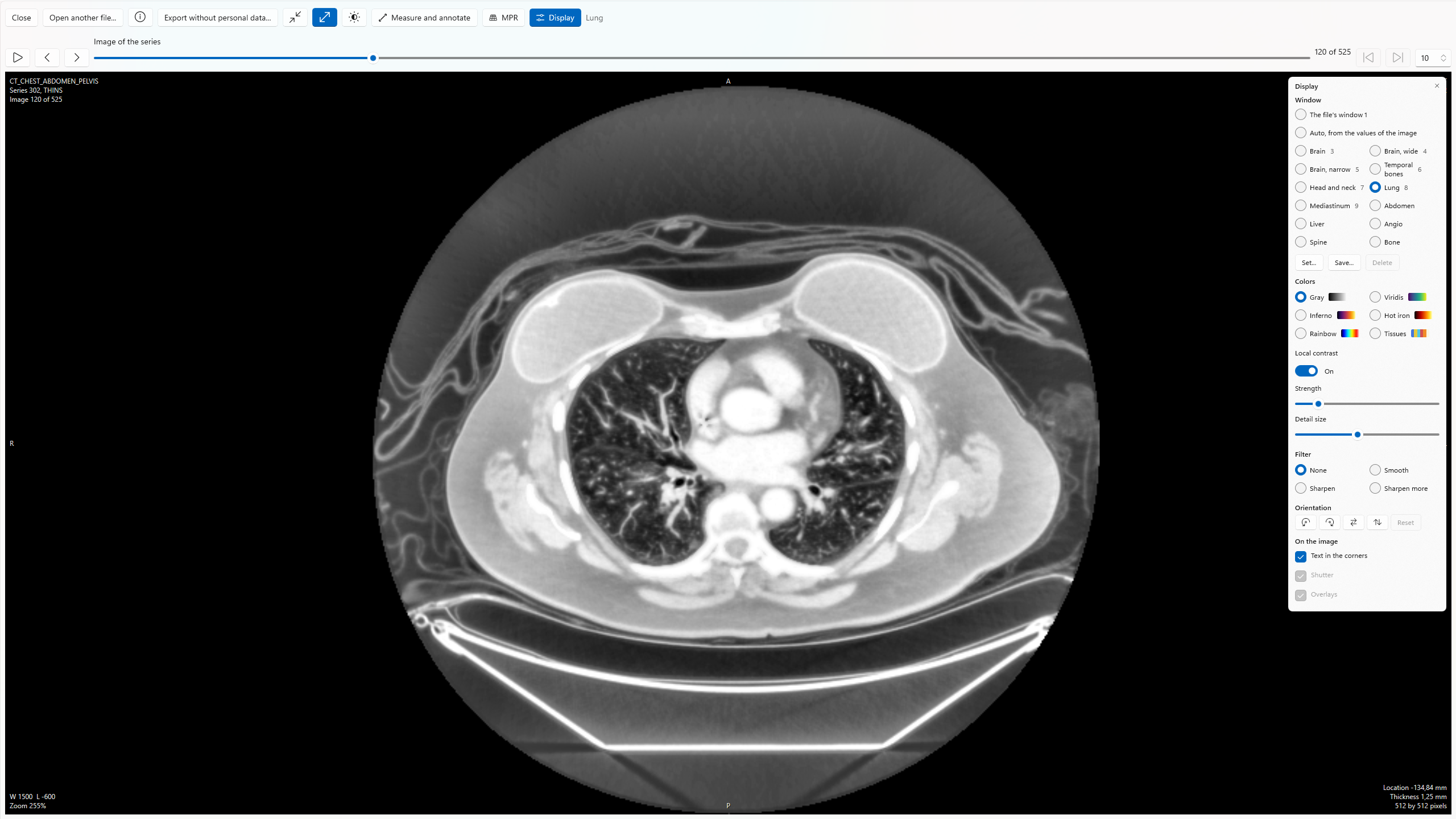
The Display window sets how the image looks. None of it changes the file, and exports and prints follow it.
Window
The window picks which values show from black to white. The list holds the file's own windows, All the values of the image, Auto, from the values of the image, and for a CT presets named for what they show: Brain, Brain wide, Brain narrow, Temporal bones, Head and neck, Lung, Mediastinum, Abdomen, Liver, Angio, Spine and Bone.
- Set... types a center and a width.
- Save... keeps the current window as a preset of your own, for the images of this modality. Delete removes one.
Colors, local contrast and filter
| Setting | What it does |
|---|---|
| Colors | Gray, Viridis and Inferno (even steps of value look even, readable by color blind eyes), Hot iron and Rainbow (the classic tables of PET and nuclear medicine), and Tissues, a CT colored by its Hounsfield units |
| Local contrast | Evens out the gray levels of each part of the image (CLAHE), with a Strength and a Detail size |
| Filter | None, Smooth, Sharpen, Sharpen more |
| Invert | Light for dark |
| Orientation | Turn left, turn right, mirror, any angle, and Reset to the image as the file stores it |
On the image
| Option | What it shows |
|---|---|
| Text in the corners | The study, the series, the window and the sides of the body. Personal data shows only when the settings show it |
| Scale | A ruler along the left and bottom edges, on an image that gives the size of its pixels |
| Contour at | A line where the values cross a level, on the image and on the planes of MPR. On a CT the level is in Hounsfield units, 300 outlines bone |
| Shutter | Covers what the file says is outside the useful part of the image, the collimator of an X-ray for instance |
| Overlays | The graphics and regions the file draws over the image |
Series & Gallery
An image opened from a folder brings the other images of its series with it. The slider in the bar steps through them, and so do the mouse wheel, Page Up and Page Down, Home and End.
- Play plays the series, at the number of images per second of the box beside it.
- Marks under the slider show the images with measurements, and Previous image with measurements and Next image with measurements jump to them.
- Turn Browse the series off in Settings to open each file alone.
The gallery
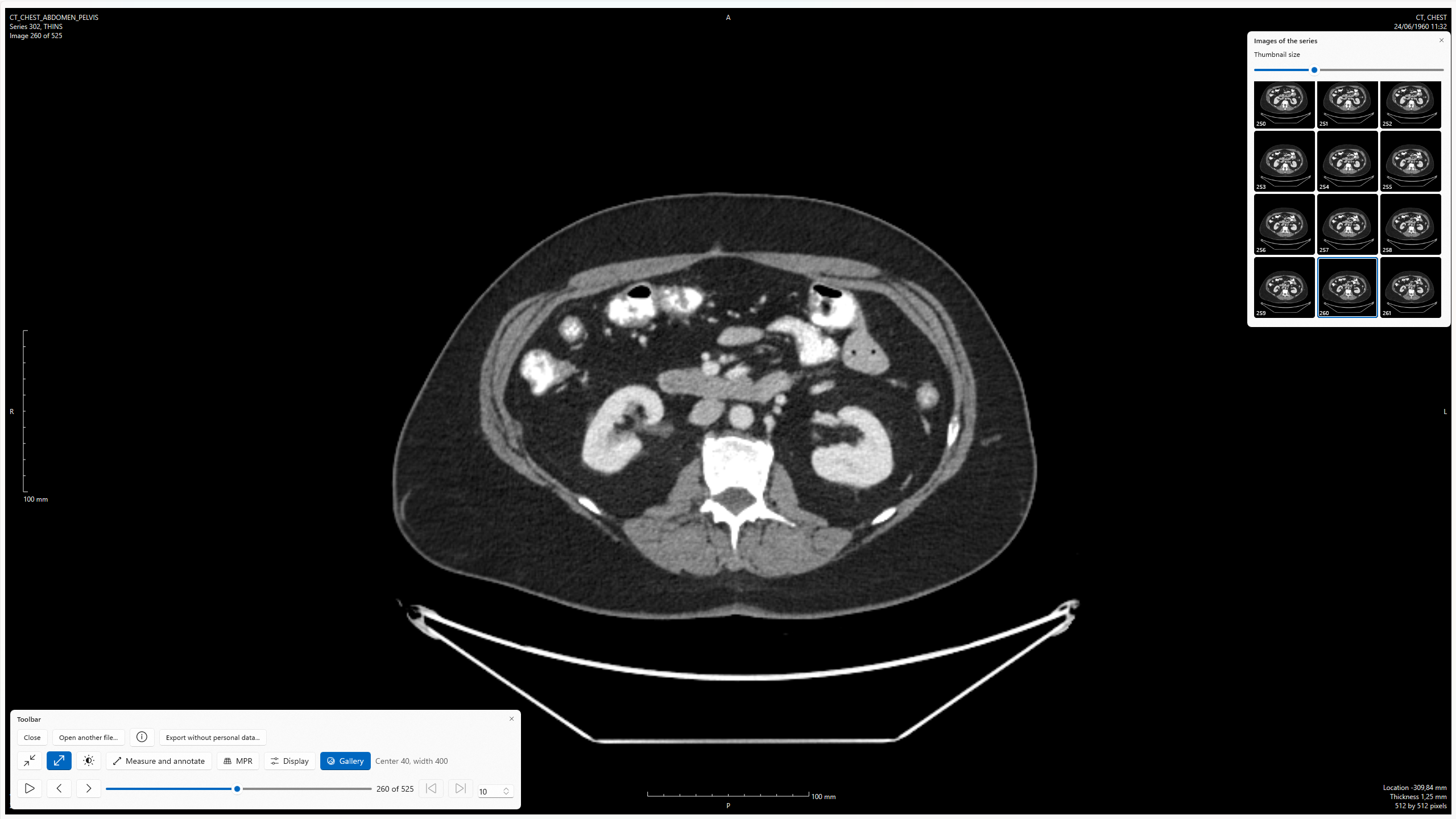
Gallery, in the bar, opens a window with every image of the series as a thumbnail, or every frame of an image that holds several.
- A click on a thumbnail shows that image, in MPR the planes move to it.
- The image shown is framed, and stays in view while you step through the series or play it.
- An image with measurements carries a dot, as the series slider marks it.
- The thumbnails are drawn with the window, the colors and the rest the image is shown with, and follow them when they change.
- The slider at the top makes the thumbnails smaller or larger.
Measure & Annotate
The Measure and annotate window holds the tools. With a tool, a left drag draws, with none it selects and moves. Measurements are kept with each image, and come back the next time you open it.
Lengths
Line, polyline, perpendicular distance, parallel lines.
Angles
Angle, angle between two lines, Cobb angle.
Areas
Rectangle, ellipse, circle through three points, polygon, magic wand, with mean, minimum, maximum and standard deviation.
Values & notes
Pixel value, in Hounsfield units on a CT, arrow, text, magnifier.
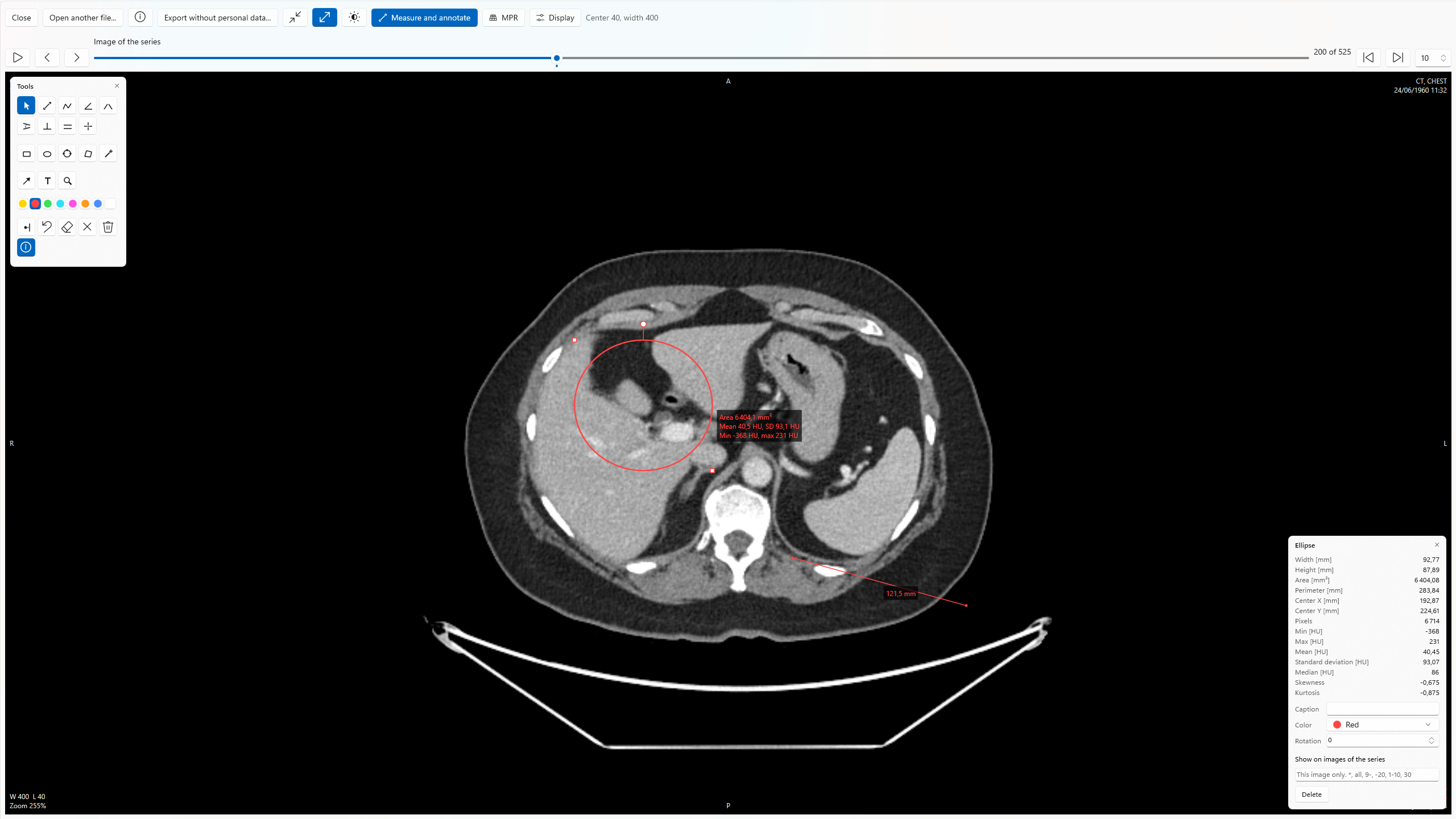
| Action | How |
|---|---|
| End a polyline or polygon | Enter or a double click |
| Stop drawing | Escape |
| Delete the selected one | Delete |
| Remove the last one | Ctrl+Z |
| Details | Show the window of the measurement selected: its values, color, caption, and the images of the series it shows on, *, 9-, -20, 1-10 |
| Snap | Snap points to edges puts a point on the nearest edge of the image |
Lengths and areas are written in the unit set in Settings, millimeters, centimeters or inches. An image that gives no pixel spacing is measured in pixels.
Measurements are approximate. They depend on the pixel spacing the file states and on where the points are put. They are for teaching, research and making things, never for any medical decision.
MPR
MPR shows the series cut along three planes, axial, coronal and sagittal, beside its 3D view. It needs a series, or an image of several frames, a single image has nothing to cut across.
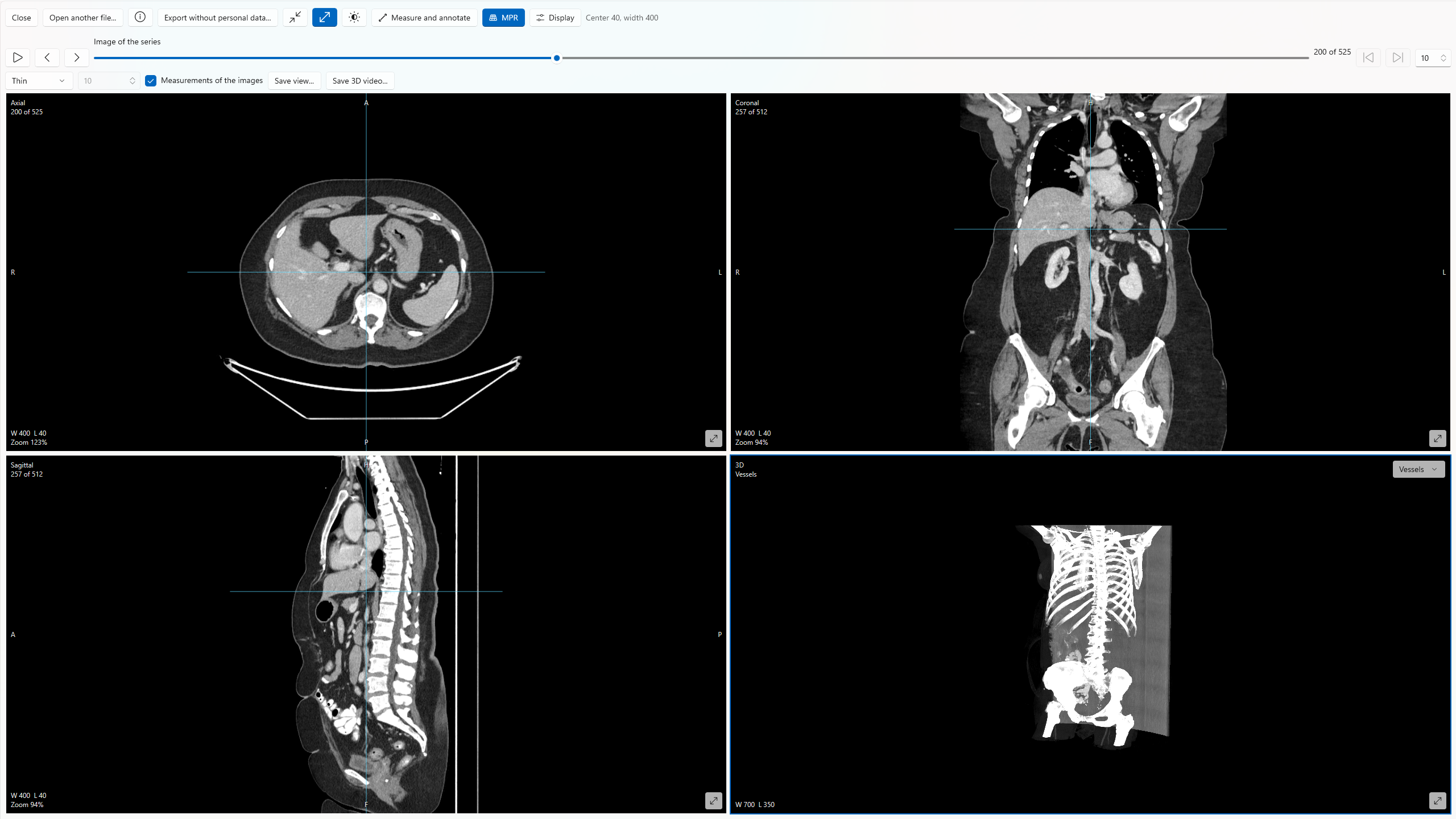
| Action | How |
|---|---|
| Move the planes | A click or a drag in one plane moves the other two there |
| Step through planes | The mouse wheel |
| Zoom and pan | Ctrl and the wheel zooms, a middle drag or a left drag with Space held pans, Ctrl+0 fits the pane framed |
| Turn the planes | A drag of a handle of the crosshair turns the two other planes. Straighten puts them straight again |
| One view alone | The button in a pane's corner shows that view alone, or the four again |
| Slab | Thin, or a slab of several millimeters as MIP (its brightest values), MinIP (its darkest) or Average |
| Play | Plays the framed pane, its planes one after the other, or the 3D view turning round |
| Save view... | Saves what the framed pane shows as a picture |
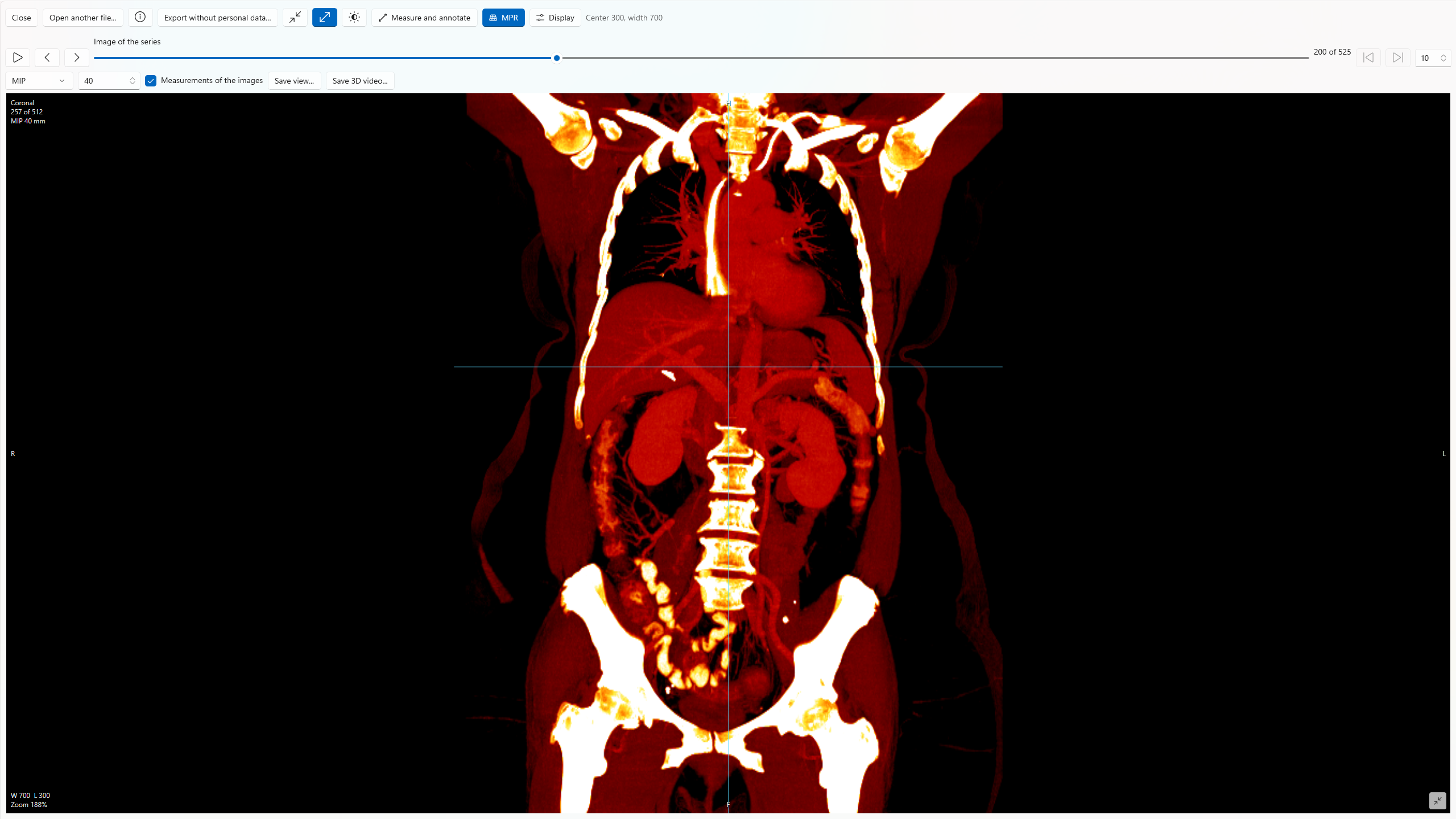
Measurements of the images draws the measurements of each image of the series on the plane through it. Moving or changing one there changes it on the image.
MPR holds the whole series in memory, about 2 MB a million voxels. A series larger than Largest series for MPR in Settings is refused before it is loaded. MPR needs a stack of parallel slices, a localizer or a few separate images is not one.
3D View
The fourth pane of MPR turns the series in 3D. It can also go to a window of its own, to put on another screen.
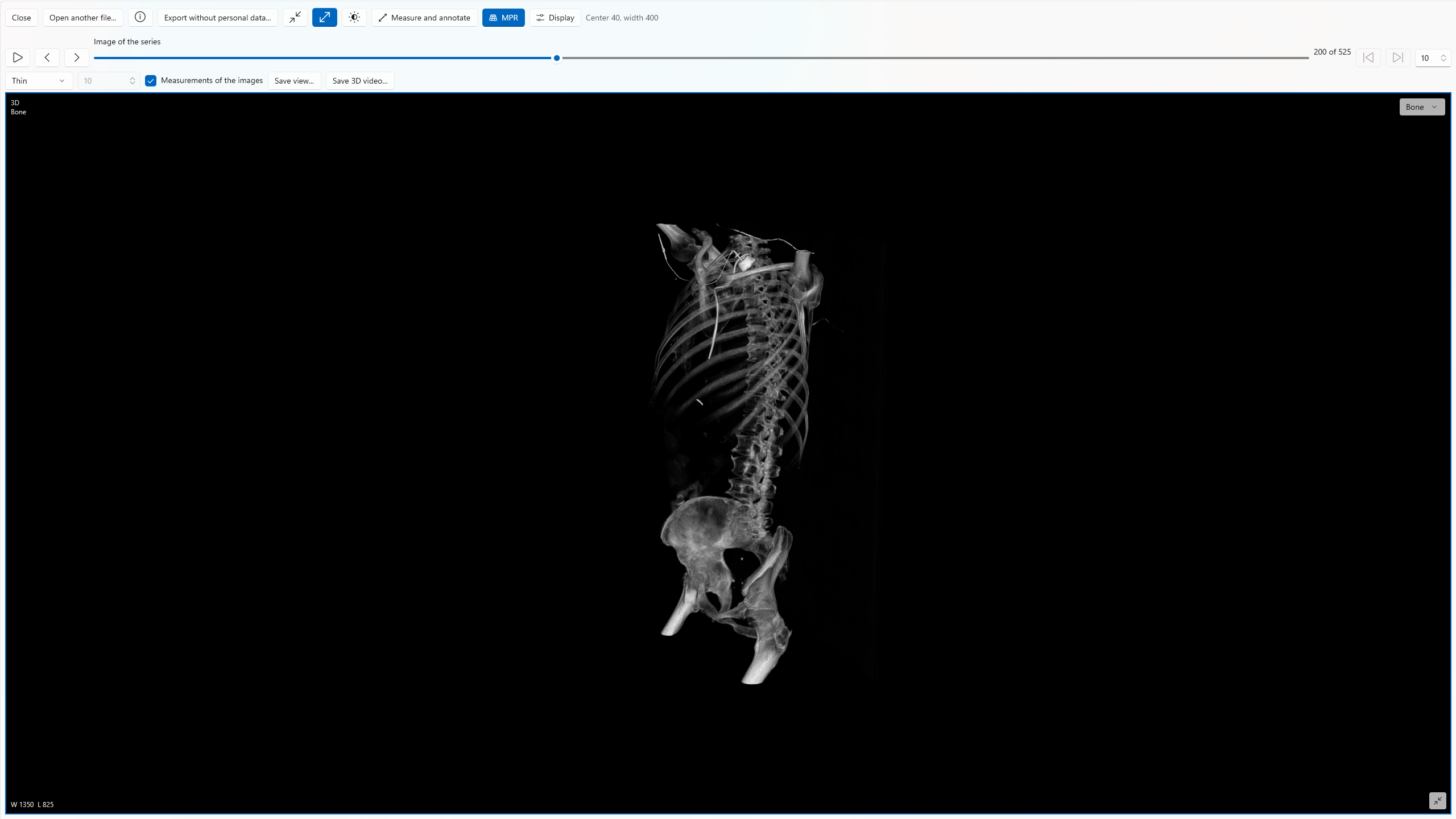
| Mode | What it draws |
|---|---|
| Shaded | The volume lit like a solid, with presets Skin, Bone, Skin and bone, Soft tissue and Vessels |
| MIP | The brightest value along each ray, plain or inverted |
| Surface | A surface through one value, Bone surface by default |
| Action | How |
|---|---|
| Turn | A left drag |
| Closer / farther | The mouse wheel |
| Move | A middle drag, or a drag with Space held |
| Window | A right drag |
| From the front | A double click |
- Smooth the volume in 3D evens out the steps from one voxel to the next. The planes and the image keep the values of the scan.
- Body only in 3D leaves out the table, the tubes and the leads of a CT, and the noise some MR sequences fill the air with. Uncheck it to see the whole volume.
- Save 3D video... saves the view turning a whole round as an MP4, as long and as big as you choose.
Some series have no 3D view: images that are already projections the scanner made, MIP or MinIP, and slabs thicker than the gap between them. Open the series of thin slices they were made from.
Image Tags
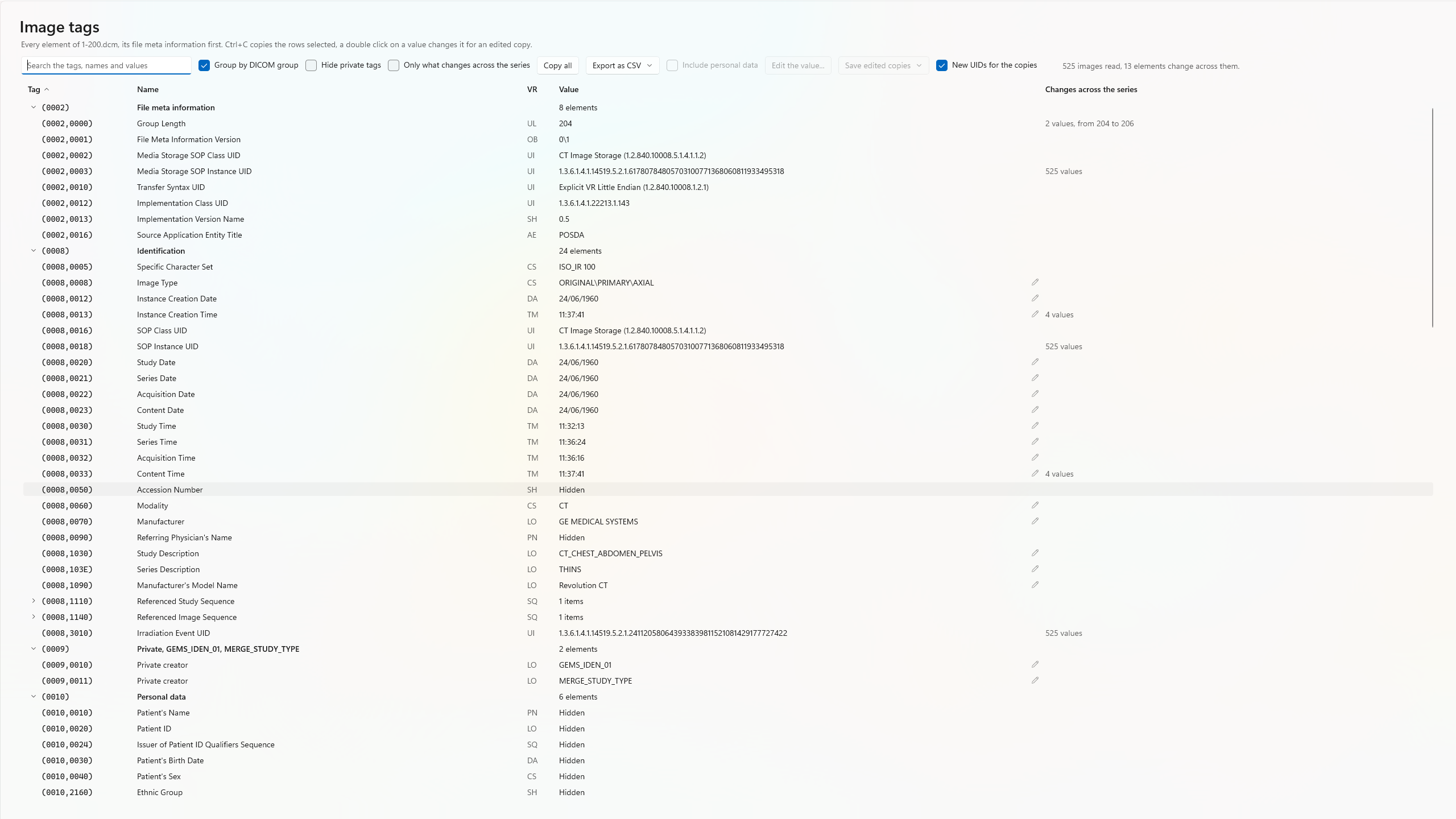
The Image tags page lists every element of the file, its file meta information first, sequences opened, each with its tag, name, VR and value.
| Option | What it does |
|---|---|
| Search | Searches the tags, names and values |
| Hide private tags | Leaves out the elements of the device's maker |
| Group by DICOM group | Identification, Personal data, Acquisition, Image and the others, in sections |
| Only what changes across the series | Keeps the elements that differ from one image of the series to the next, with how many values they take, and from which to which |
| Copy all | Every element as text a spreadsheet pastes as cells. Ctrl+C copies the rows selected |
| Export as CSV | This image, or every image of the series. Include personal data is offered only when the settings show it |
Editing values in copies
A double click on a value, or Edit the value..., changes it. The box says what the element takes, a date written as 20240624 for instance, and refuses what it does not. The change goes into copies, never into your files.
- Change the values you want.
- Tick New UIDs for the copies, so no software takes them for the originals.
- Save edited copies, of this image or of every image of the series. Discard the changes forgets them.
Export as Images & PDF
The export pages save the image the way the Image page shows it, with its window and inverted when it is. The files carry the series, the date and the device, never any personal data.
What to export
- Image, as shown, and any of its frames or the images of its series.
- The planes MPR shows, or every plane along one direction, and the 3D view, as it was left.
- As PDF, one file for the whole series and one for each set of planes, an image a page.
| Option | Choices |
|---|---|
| Image format | PNG, JPEG, TIFF and any format Windows can write |
| Pixels | As shown, 8 or 16 bits. Or the values the file holds, stored or rescaled, with no window, for measuring in another program |
| Sizes | Several at once, each the longest side of the output, in pixels |
| Over each image | The measurements and annotations, the text of the corners |
| Crop | To the body, leaving out the air and the scanner table |
| File name template | See File Name Tokens |
Export as Video
Export as video writes the frames of a multi-frame image, a cine loop for instance, or every image of its series, as an MP4 video (H.264) or an animated GIF. Every frame uses one window, so the video does not flicker.
| Option | Description |
|---|---|
| Frames per second | The rate the file gives when left empty, 10 for a series |
| Longest side | In pixels. An MP4 keeps the image's own size when left empty |
A GIF has 256 colors a frame and plays at most 50 frames per second, it suits short clips. An MP4 is far smaller for long ones.
Export as 3D Model
Export as 3D model saves the series as a closed surface through one value of its volume, as STL, 3MF or OBJ, in millimeters, for a 3D printer or a 3D program.
| Option | Choices |
|---|---|
| Preset | Skin, Bone, or a value of your own, in Hounsfield units on a CT |
| Detail | Fine, every voxel. Medium, every second. Light, every third |
| Clean up | Keep only the largest piece, smooth the surface, leave out what lies outside the body |
It works best with a CT of thin slices. The skin and the bone come out well, soft tissue is rougher, and an MR seldom separates by a single value. Once written, the model opens in your 3D program, or in File Explorer with 3D Explorer Preview.
A model shows the shape of a scan for teaching, research and making things. It is not a medical device and must not be used to plan an operation or any treatment.
Contact Sheet & Print
Export as contact sheet lays out many images side by side on sheets of paper, as a PDF to print or to share, the frames of the image shown or every image of its series. The heading tells the modality, the study, the series, the date and the device, never any personal data. The paper is Letter or A4, the one your region uses.
Print, or Ctrl+P, prints the image as shown, fitted on one sheet, or every image of its series, one a sheet, or the planes of MPR and the 3D view.
| Option | Description |
|---|---|
| Heading | The study date, the series and its description, and which image it is. Never any personal data |
| Text on each page | At the bottom of each sheet, with the tokens of the export file names, {page}, {pages} and any DICOM element |
| Page numbers, orientation, margins | Portrait or landscape, narrow, normal or wide margins |
| Measurements, text in the corners | Drawn over each image, as the Image page shows them |
Export Without Personal Data
Export without personal data... copies a series, a whole study, or everything the Studies page lists, into a new folder, without the names, IDs, birth dates, accession numbers, people and places the files carry. Each copy gets new identifiers, so nothing links it back to its original, and the copies of one study still belong together.
| Option | Description |
|---|---|
| Keep the dates | Of the studies and series |
| Keep the descriptions | Of the studies and series. They sometimes hold a name |
| Write a DICOMDIR | As a CD has, so other viewers open the copies as studies. The files are then named as the standard asks, without an extension |
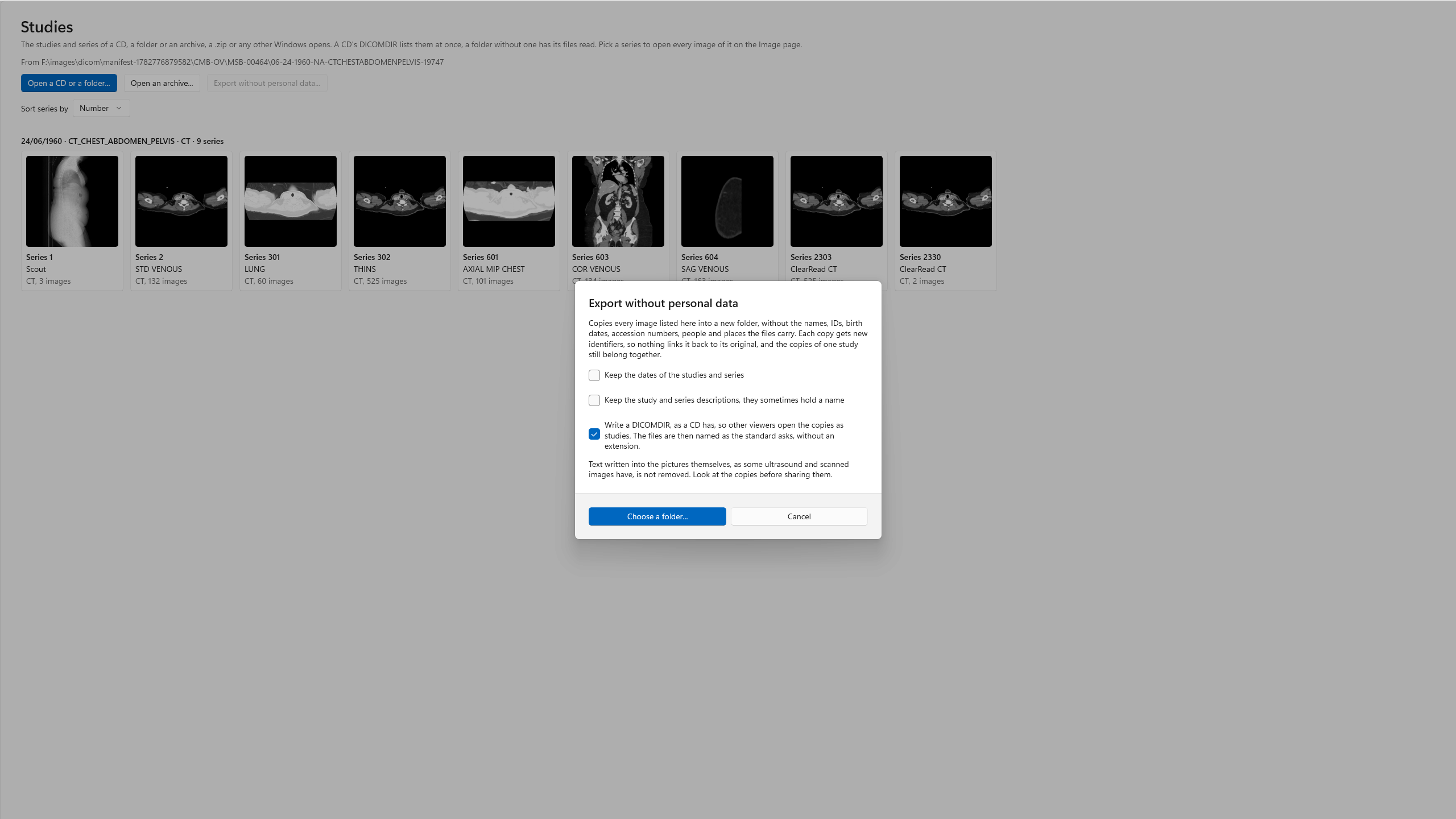
Look at the copies before sharing them. Text written into the pictures themselves, as some ultrasound and scanned images have, is not removed. DICOM Explorer counts the images that say they carry such text and tells you.
Better Shell Integration (administrator required)
Thumbnails and the preview pane work as soon as DICOM Explorer is installed, they do not need Better Shell Integration. It registers DICOM Explorer with Windows itself, which the file properties and DICOM Explorer's own Details columns always need, as does the system-wide decoder that lets other Windows apps, Photos among them, open DICOM files, and the thumbnails and the preview pane need only when another app declares the same extensions. Because it changes the machine, Windows asks for administrator approval when you turn it on or off.
It works even when another app is your default. If you open your files in another DICOM viewer and keep it as the default, DICOM Explorer still supplies the thumbnails, previews and properties, and double-click keeps opening your viewer.
The DICOM columns
More than 70 columns, each named DICOM something so they are easy to find: modality, study and series descriptions and dates, body part, protocol, manufacturer, model, institution, pixel spacing, slice thickness, window, the way the file is stored, the acquisition values of CT and MR, and the personal data when the settings show it. Right-click a column header in the Details view, More..., and tick the ones you want.
For your account, not everyone on the PC. Installing it needs an administrator, but it only works for a Windows account that has DICOM Explorer installed and licensed.
Install, update, uninstall
Everything is done from Settings, Windows Explorer, Better shell integration. The card shows the current status and the matching buttons.
| Status | Meaning | Button |
|---|---|---|
| Not installed | Nothing is registered with Windows on this PC. | Install |
| Installed | Registered on this PC and current. | Reinstall / Remove |
| Installed, update available | A newer build ships with this app version. | Update / Remove |
Not every app can use the decoder. Some Microsoft Store apps rely on their own list of formats and do not pick up a third-party decoder. Classic desktop apps that decode through Windows Imaging Component do.
Recent Files
The Recent files page keeps a list of files you have opened, so you can go back to them quickly.
| Action | Description |
|---|---|
| Click a file link | Opens that file in the viewer. A file that was moved, renamed or deleted says so. |
| Clear recent files | Removes every entry, after asking you to confirm. |
| Remove missing files | Removes entries for files deleted or moved. |
Settings
Appearance
| Setting | Options | Description |
|---|---|---|
| Application theme | System Light Dark | Follow the system, or pick light or dark. |
| Font of measurements and image text | Any installed font | The labels of measurements and annotations, and the text in the corners, in the view, the exports and the prints. |
| Size of measurements and image text | A size | The size the view writes them at. Exports and prints scale it with the picture. |
| Unit of measurements | Millimeters Centimeters Inches | The unit lengths and areas are written in. |
Behavior
| Setting | Options | Description |
|---|---|---|
| Remember recent files | On / Off | Keep a list of the files opened recently. |
| Browse the series | On / Off | Open the other images of the series from the folder of the file opened. |
| Largest series for MPR | Million voxels | MPR holds the whole series in memory, about 2 MB a million voxels. A longer series is refused before it is loaded. |
Windows Explorer
| Setting | Description |
|---|---|
| Better shell integration | Install, update or remove it, see Better Shell Integration. |
| Show personal data in File Explorer | Off by default. When on, the name, ID, birth date, sex and age of the person scanned and the accession number show in the Details columns, and what File Explorer shows also goes into the Windows Search index. |
| Frame of a multi-frame image | The frame the thumbnail shows and the preview pane opens on, first or middle. A cine loop or a volume often starts on an empty frame, the middle one is more telling. |
| Thumbnails: window from the values of the image | Draws each thumbnail with a window taken from its own values, rather than the file's window, which some files leave dark or blank. |
| Thumbnails: crop to the body | Leaves out the empty margins around the body, so it fills more of the thumbnail. |
| Thumbnails: local contrast | Evens out the gray levels of each part of the thumbnail, as the Image page does. |
| Preview pane | What the preview pane opens every file with: Background (from the image, black or white), View (the image, a plane or 3D), 3D view, Colors, Filter, Local contrast, Invert, Text in the corners, Scale, Contour and Measurements. The pane's Use these choices for all previews fills them in. |
| Reset Explorer thumbnails | Asks Windows Explorer to draw its thumbnails again, after a change of the settings above. |
The About section shows the app version and a link to System Information, useful when you tell us about an issue.
Diagnostics
The last row of About is Diagnostics, a report to send support when something goes wrong, in the app or in File Explorer.
- Choose Problems only, or Everything when support asks for more detail.
- Make the problem happen again.
- Click Save report. One file lands on your desktop, ready to attach to an email.
What a report holds. What the app and its handlers did and the errors they met, as short codes, and the Windows version, processor, memory and graphics drivers. No file names, no paths, nothing that names you, the person scanned or your PC, and nothing from your files. Recording stops on its own after a day, and nothing leaves your PC unless you send it.
Intended Purpose
DICOM Explorer is made for viewing, organizing, converting, de-identifying and sharing DICOM images, for education, research, software development and personal use.
Not a medical device. DICOM Explorer must not be used for diagnosis, treatment or any clinical decision. Its windows, measurements, planes, 3D views and models are ways to look at images, not a basis for any medical decision.
Who it is for: people working with DICOM data in research and machine learning, teachers and students, developers testing their files, practices that need to look at and share images on a Windows PC, and anyone who got a CD of their own scans.
Nothing leaves your PC. DICOM Explorer has no account and sends nothing anywhere. Your files are only ever read, every change goes into copies.
Supported Formats
Files
The app also opens DICOM files with no extension, as a CD holds them, and archives through the Studies page. ACR-NEMA files with no preamble are read too.
Transfer syntaxes
| Kind | Read |
|---|---|
| Uncompressed | Implicit and explicit VR little endian, explicit big endian, deflated |
| JPEG | Baseline, extended 12 bit, lossless (process 14), JPEG-LS |
| JPEG 2000 | Lossless and lossy, HTJ2K |
| Others | RLE lossless, JPEG XL |
| Video | MPEG-2, MPEG-4 and HEVC, their frames |
Pixels
MONOCHROME1 and MONOCHROME2, PALETTE COLOR, RGB, YBR_FULL and YBR_FULL_422, signed values and any bit depth, with the rescale and window the file gives, multi-frame images and overlays.
File Name Tokens
The output file names of the exports, and the text printed on each page, are written as templates.
| Token | Replaced by |
|---|---|
{name} | The name of the file, without its extension |
{size} | The longest side of the output, needed when several sizes are exported |
{layer} | The frame, the image of the series or the plane, needed when several pictures are exported |
{dicom:SeriesDescription} | Any DICOM element, by its keyword, or by its tag, {0008,0008} |
{date} | The date |
{page} {pages} | The sheet and the number of sheets, when printing |
Keyboard & Mouse
In the DICOM Explorer app
In the Windows Explorer preview pane
Limitations
DICOM Explorer is a fast viewer, organizer and converter for your PC. Knowing where it stops helps set expectations.
Your files are never changed
Edits, conversions and copies without personal data are always written as new files.
No network
DICOM Explorer does not connect to a PACS or any server, it opens files, folders, CDs and archives.
Explorer and files without an extension
File Explorer gives thumbnails, previews and columns by extension, so the files of a CD without one show none. Open the CD on the Studies page, or make a .dicomzip. The preview pane of a .dicomzip shows the first series it lists.
MPR and 3D
They need a stack of parallel slices with a position and an orientation, and the memory the series takes, about 2 MB a million voxels.
Video
GIF plays at most 50 frames per second and suits short clips. An MP4 has a largest size its encoder accepts, the page says which.
Tips & Tricks
Sort a folder of studies
Install Better Shell Integration, open the folder in the Details view, right-click a column header, More..., and add DICOM Modality, DICOM Study date, DICOM Series description and DICOM Body part. Group by DICOM Study or DICOM Series to see a folder at a glance.
Share a CD with a colleague or a student
- Open the CD on the Studies page.
- Choose Export without personal data... and tick Write a DICOMDIR.
- Look at the copies, then zip the folder, or rename the zip to
.dicomzipto see it in File Explorer.
Teaching material
Lay out a series on a contact sheet, save a 3D turn as video for a slide, or print a model of a skull from a CT with Export as 3D model.
Want data to try?
The Cancer Imaging Archive shares de-identified CT, MR and PET collections, most under a Creative Commons license. Credit the collection as it asks when you publish a result.
Dark mode
DICOM Explorer follows your Windows theme by default, a dark theme suits gray images. For a fixed look, choose Light or Dark in Settings.
Troubleshooting
"File system error (-2143322102)" when opening a file
If opening a file shows its path and File system error (-2143322102), your free trial has ended. Windows refuses to start an app whose Store licence is no longer valid, and that number is the Store's licensing error, 0x803F800A. Nothing is wrong with the file. Get DICOM Explorer from the Microsoft Store and the files open again.
A thumbnail is black or blank
Some files give a window that leaves them dark. Turn on Thumbnails: window from the values of the image in Settings, then Reset Explorer thumbnails. A cine loop or a volume may start on an empty frame, set Frame of a multi-frame image to Middle.
"MPR needs a stack..."
The series shown is a localizer or a few separate images. Open another series of the study, the Studies page lists them all. A series of several hundred images may also need a higher Largest series for MPR.
Thumbnails only show in the icon views
Windows draws thumbnails in Explorer's icon views only. A folder in Details or List view shows the plain file type icon instead, whatever the file is. Your Pictures folder opens in Large icons, which is why images look right there, while Documents, Downloads and a USB stick open in Details view. The folder and the drive make no difference, the view does.
In a folder where thumbnails are missing, open the View menu of the Explorer toolbar and choose Medium icons, Large icons or Extra large icons. Holding Ctrl and turning the mouse wheel does the same, and Windows remembers the choice for that folder.
Two Windows settings turn thumbnails off everywhere, so they are worth a look. In Explorer, View → Show → Options, on the View tab, Always show icons, never thumbnails must not be ticked. And press Win+R, run sysdm.cpl, then Advanced → Performance → Settings, where Show thumbnails instead of icons must be ticked.
The preview pane stays empty
The preview pane belongs to Explorer, not to DICOM Explorer, and Windows keeps it closed until you ask for it, in each Explorer window separately. Press Alt+P, or use View → Preview pane, in the window where you want it. A second window needs the same.
On Windows 11 the Details pane and the Preview pane cannot be open at the same time, so turning the details pane on closes the preview. The Open and Save dialogs of other programs have no preview pane at all, whatever is installed.
One Windows setting hides every preview, for all file types. In Explorer, View → Show → Options, on the View tab, Show preview handlers in preview pane must be ticked. A pane that is open and still empty for a file you downloaded is a different matter, Windows blocks those, see the Mark of the Web note.
Thumbnails or previews don't show (another app is the default)
Windows 10 is the strict case. On Windows 10, the default app of a file type owns its thumbnails and preview outright, so they appear only once DICOM Explorer is the default for the type, or with Better Shell Integration installed.
- Open Windows Settings, Apps, Default apps.
- Find and click DICOM Explorer.
- For each extension you want, choose DICOM Explorer as the default.
Preview pane stops responding after double-clicking a file (Windows 11)
On recent Windows 11 updates, double-clicking the file you are previewing, to open it, can leave the preview pane unable to react. The preview is still drawn, but the pointer keeps a resize arrow over it, and clicks, drags and the wheel do nothing. Windows starts a second preview of the file as it opens it and leaves an empty window of its own over the first one. It happens with the previews Windows ships too, a text file double-clicked into Notepad for instance, and it does not happen on Windows 10.
To get the preview back, close that File Explorer window and open a new one. To avoid it, open the file from inside the application rather than by double-clicking it in Explorer.
Preview stays blank for files downloaded from the internet
Starting with Windows 11 25H2, Microsoft blocks the preview pane for files that carry the "Mark of the Web", files downloaded from the internet. This affects every file type and DICOM Explorer cannot override it.
How to restore the preview: right-click the file, Properties, tick Unblock at the bottom of the General tab, then OK. PowerShell's Unblock-File does the same for many files at once.
Newer Windows 11 updates let you preview anyway. Since the April 2026 update (KB5083631), the preview pane of a downloaded file shows a Preview anyway button under the warning, which shows the file once you acknowledge it, without unblocking it. With the September 2026 update (KB5124010), for Windows 11 24H2, 25H2 and 26H2, Microsoft keeps that button for HTML files and previews other downloaded files, such as PDFs, without asking. Microsoft rolls these changes out gradually, so they can reach one PC later than another. See Microsoft's release notes.
Image Credits
The images in the screenshots come from the Cancer Moonshot Biobank, Ovarian Carcinoma Cancer Collection (CMB-OV), The Cancer Imaging Archive, https://doi.org/10.7937/4nx6-e061, under the CC BY 4.0 license.
If DICOM Explorer has earned a spot in your work, a quick rating on the Microsoft Store helps others who work with DICOM files discover it, and it means a lot to our small team. It takes less than a minute.
★ Rate DICOM Explorer on the Microsoft Store