
Read Markdown
as real pages
Fast Markdown Viewer opens Markdown files the way you would read a book or a report: laid out on real pages, with tables, diagrams, formulas and code all in place. Open one file, a whole folder, or a set of linked documents, read them one after the other, find anything in them, and turn them into a PDF with selectable text, working links and bookmarks. It is a reader, it never changes your files.
What sets it apart
Most Markdown tools are editors with a preview on the side, or a web page squeezed into a window. Fast Markdown Viewer is built for reading, from its own engine up, and that is where its differences come from.
Genuinely fast
No web browser hides inside it. Its own engine reads and lays out the text, so a long specification of 158 pages is ready in about a sixth of a second, and a 100 MB file shows its first pages in well under a second while the rest is measured behind the scenes. Scrolling and zooming never lay the document out again.
Pages, not a long scroll
Your document is set on real pages, A4 or Letter, the way it will print. What you read is exactly what the PDF will hold, page for page, so there are no surprises when you send it.
32 kinds of diagrams, drawn natively
Flowcharts, sequence diagrams, timelines, Gantt charts, mind maps, pie charts and 26 more are drawn by the app itself. Nothing is downloaded, no script runs, and they stay sharp at any zoom and in the PDF. A hand drawn look and ten diagram themes are included.
Page styles, not just a dark mode
Fourteen styles change the fonts, the spacing and every colour of the page, from a bookish serif on warm paper to a typewriter, a green terminal screen, Solarized, Nord or high contrast. The style follows your document into the PDF, the pictures, the web page, and even File Explorer's previews.
Made for everyone
Screen readers read the pages, their text and their links, page by page. Everything can be done from the keyboard, links included, every menu command has a shortcut, and a high contrast page style is one click away.
Many documents as one
Open a folder, or let the app follow the links between your files, and every document is read one after the other, like chapters of a book. Export them all into a single PDF, each starting on its own page, with one bookmark per document.
Right inside File Explorer
Thumbnails show the first page of each document, the preview pane shows the pages with zoom, and the Details pane shows the title, the author and the number of words. Even saved diagrams, .mmd files, get their picture.
Private and offline
Nothing you open leaves your PC. No account, no cloud, no tracking. Pictures a document takes from the web are not even downloaded unless you ask for them, so opening a file never tells a website you read it.
Reads Markdown correctly
The app passes every one of the 652 examples of the CommonMark specification and the GitHub extensions examples, then adds the extras people actually write: tables, task lists, footnotes, alerts, emoji, math and more.
Works with your AI assistant
Claude, ChatGPT, Copilot or LM Studio can read the page you are on, open files and make PDFs for you, once you allow it. Connecting takes one click in Settings, see AI Assistants.
Installation
Fast Markdown Viewer is a single Windows application. Once installed it appears in your Start menu and in the Open with list of Markdown files.
Get Fast Markdown Viewer
Fast Markdown Viewer is distributed through the Microsoft Store, so it stays up to date automatically and installs cleanly with nothing else to set up. A free trial lets you use everything before you decide.
⬇ Get it from the Microsoft StoreNothing to configure. Start the app and drop a Markdown file on its window, or double-click a .md file once Fast Markdown Viewer is your default app for Markdown. The files it reads are .md, .markdown, .mdown, .mkdn, .mkd, .mdwn, .mdtxt and .mdtext, Mermaid diagrams saved alone as .mmd or .mermaid, and plain text files.
The app speaks English, French, German, Spanish, Italian, Dutch, Brazilian Portuguese, Japanese and Simplified Chinese. It follows the language of Windows, or the one you pick in Settings.
The Window
The navigation on the left takes you to the pages of the app: Home, the Viewer, Export to PDF, Export to web page, Recent and Settings. You read in the Viewer.
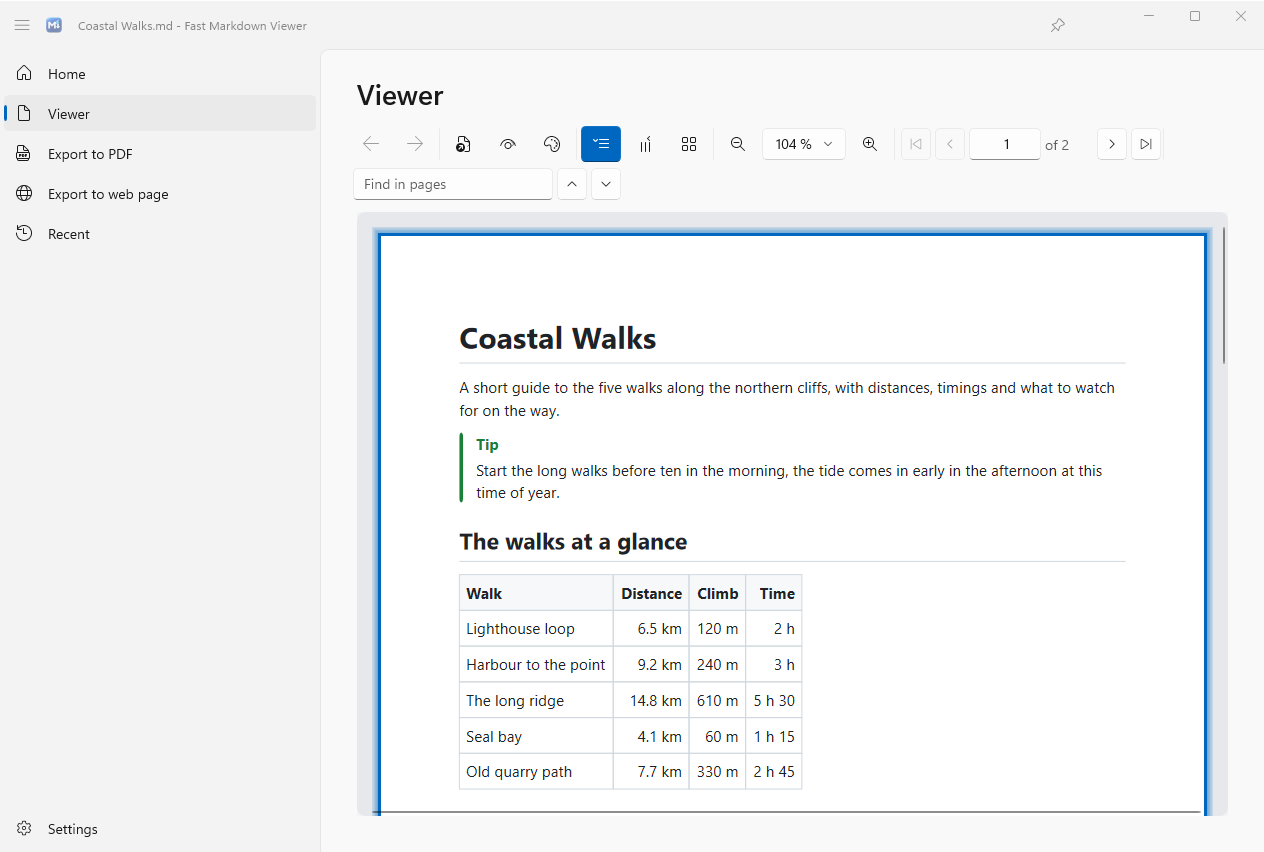
The command bar is kept small. Every button shows its name when you hover over it, and the commands you need less often are grouped in two menus:
| Button | What it does |
|---|---|
| Back, Forward | Go back to where you were before following a link, and forward again. |
| File | Open files, open a folder, refresh the documents from disk, close them all. |
| View | Show the contents panel, the list of documents with their names or their paths, the source, or go full screen. |
| Page style | Pick one of the fourteen page styles. |
| Vertical, Horizontal, Gallery | How the pages are arranged, see Views & Zoom. |
| Zoom | Zoom out, the zoom as a percentage, zoom in. Click the percentage for a list of sizes and Fit. |
| Pages | First, previous, the page number you can type into, next and last. |
| Find in pages | Type to search every page of every open document, see Find. |
The pin in the title bar keeps the window above the others, handy to read a document beside the program you are working in.
Opening Documents
Open one file, several, or a whole folder. However they arrive, the documents are read one after the other, like the chapters of a book.
Files and folders
- Drop files or folders on the window. A folder brings its Markdown files, and those of its subfolders unless you turn that off in Settings.
- File → Open files (Ctrl+O) or File → Open folder (Ctrl+Shift+O).
- Double-click a Markdown file in File Explorer, or choose Open with → Fast Markdown Viewer.
- Pick a file or a folder again from Recent.
When a folder holds an index of the others, a README.md that links to the chapters for instance, it is read first and the rest follow in a natural order, Chapter 2 before Chapter 10. A text file of another kind, a .txt or a log, is opened as plain text, and the app asks when it cannot tell whether a file is Markdown.
Following links
Click a link to another Markdown file and that document joins the ones open, at the heading the link names. Tick Follow links in the open dialogs and the app opens, along with your file, every Markdown file it links to in the same folder, and the files those link to, so a set of notes or a small manual opens whole in one go. Hover over a link to see a picture of where it leads before you click.
A link to a web page opens your browser, a link to another kind of file opens it in its own application. Back and Forward bring you back to where you were, and so do Alt+←, Alt+→ and the side buttons of your mouse.
Documents that change
Writing in another program and reading here? Save there and the page updates here, at the place you were reading. Refreshing is automatic, it can be turned off in Settings, and F5 rereads every document whenever you like.
Pictures
Pictures next to your documents are shown, PNG, JPEG, GIF, BMP, TIFF, WebP and the other formats Windows reads, and SVG drawings stay sharp at every zoom. Click a picture to see it on its own over the page, then zoom it with Ctrl and the mouse wheel. Pictures a document takes from the internet are only shown when you allow it, see Settings.
Views & Zoom
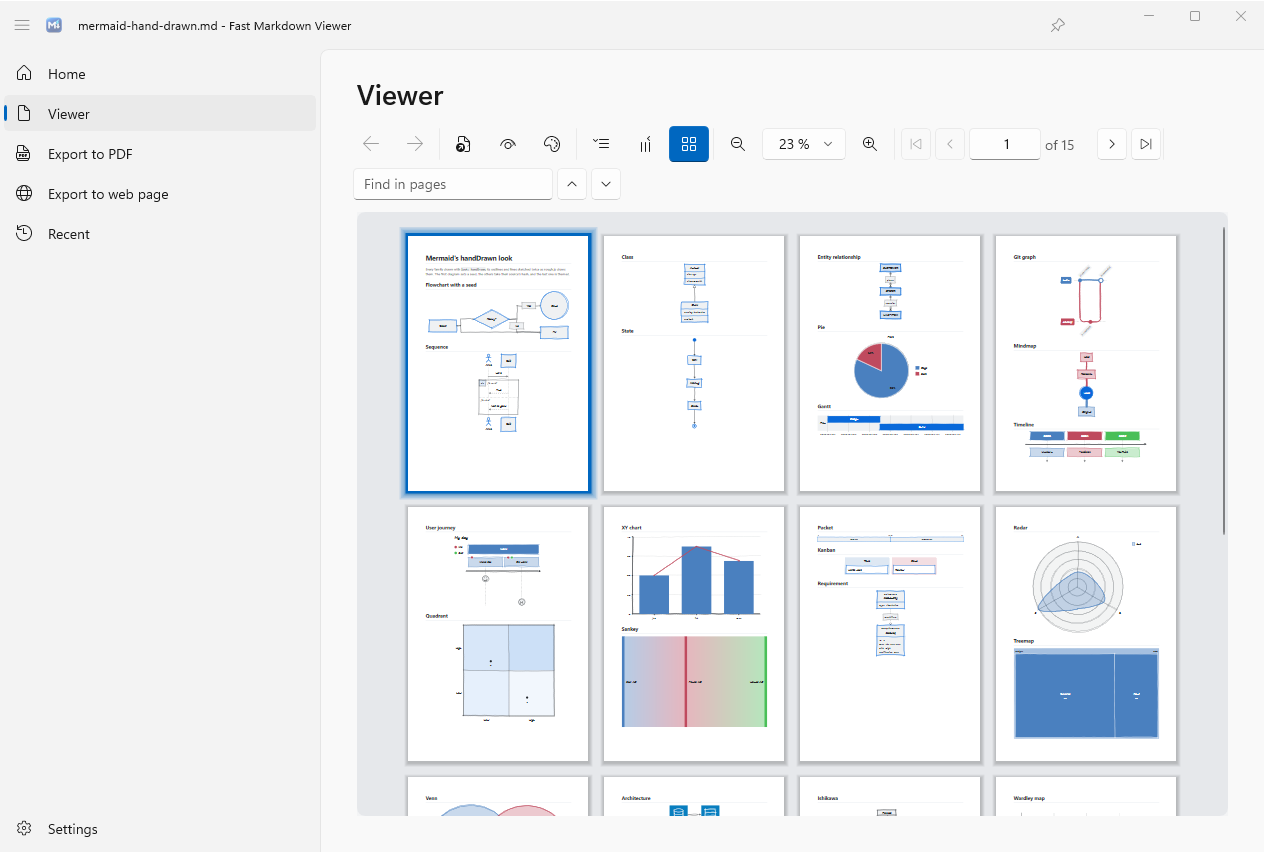
Three ways to arrange the pages, all with the same zoom and the same place in the document.
Vertical
The pages one under the other, the most natural way to read. At its fit, a page fills the width of the window.
Horizontal
The pages side by side, each one as tall as the window, a good way to read on a wide screen.
Gallery
Every page as a tile, to find a page by its look. Double-click a page to open it in the vertical view, double-click again to come back.
Zoom
Hold Ctrl and turn the mouse wheel, the spot under the pointer stays where it is. The zoom out and zoom in buttons, Ctrl+- and Ctrl++ do the same from the middle of the view. Click the percentage for 50 % to 400 % and Fit, which is also Ctrl+0, while Ctrl+1 shows the pages at their real size. Text, diagrams, formulas and SVG drawings are drawn again at every zoom, never stretched.
Pan
Hold the right mouse button down and drag to move the pages under the window, in any view. It stops where the scroll bars stop, so you never lose the pages. A simple right click still opens the context menu.
Full screen
Press F11, or choose View → Full screen, and the pages take the whole screen, nothing else around them. A small bar in the top right corner keeps the three views, Fit and the way back. Esc or F11 brings the window back.
Moving Around
Contents
View → Contents (Ctrl+Shift+T) shows the headings of every open document beside the pages. Click one to go there, and the heading you are reading is highlighted as you scroll. Type in the box above the list to filter it.
The list of documents
With several documents open, View → File names or File paths lists them on the left. Click a document to jump to its first page.
With the keyboard
Page Down and Page Up go to the next and the previous page, Home and End to the first and the last, the arrows scroll a little. In the gallery the arrows move from page to page. Tab goes from link to link in reading order, across pages, Enter follows the link. Or type a page number in the box and press Enter.
Find, Select & Copy
Find in pages
Press Ctrl+F and type. Every page of every open document is searched, each match is highlighted, small ticks along the right edge show where the others are, and the count says how many there are. Enter or F3 goes to the next match, Shift+F3 to the previous one.
Selecting
Drag over the text to select it, across pages if you like. Double-click selects a word, a third click the paragraph, Shift and a click stretch the selection, and Ctrl+A selects everything.
Copying
Ctrl+C or the context menu copies the selection both as text and as formatted text, so it pastes with its bold, its links and its lists into Word or an email. Formulas go along as MathML, so they paste into Word as real, editable equations, see Math. Right-click a table and choose Copy table to paste it into Excel with every cell in its place.
View Source
Sometimes you want to see how a document was written. View → Source, or Ctrl+U, shows each file exactly as it is, every line as typed, in colour.
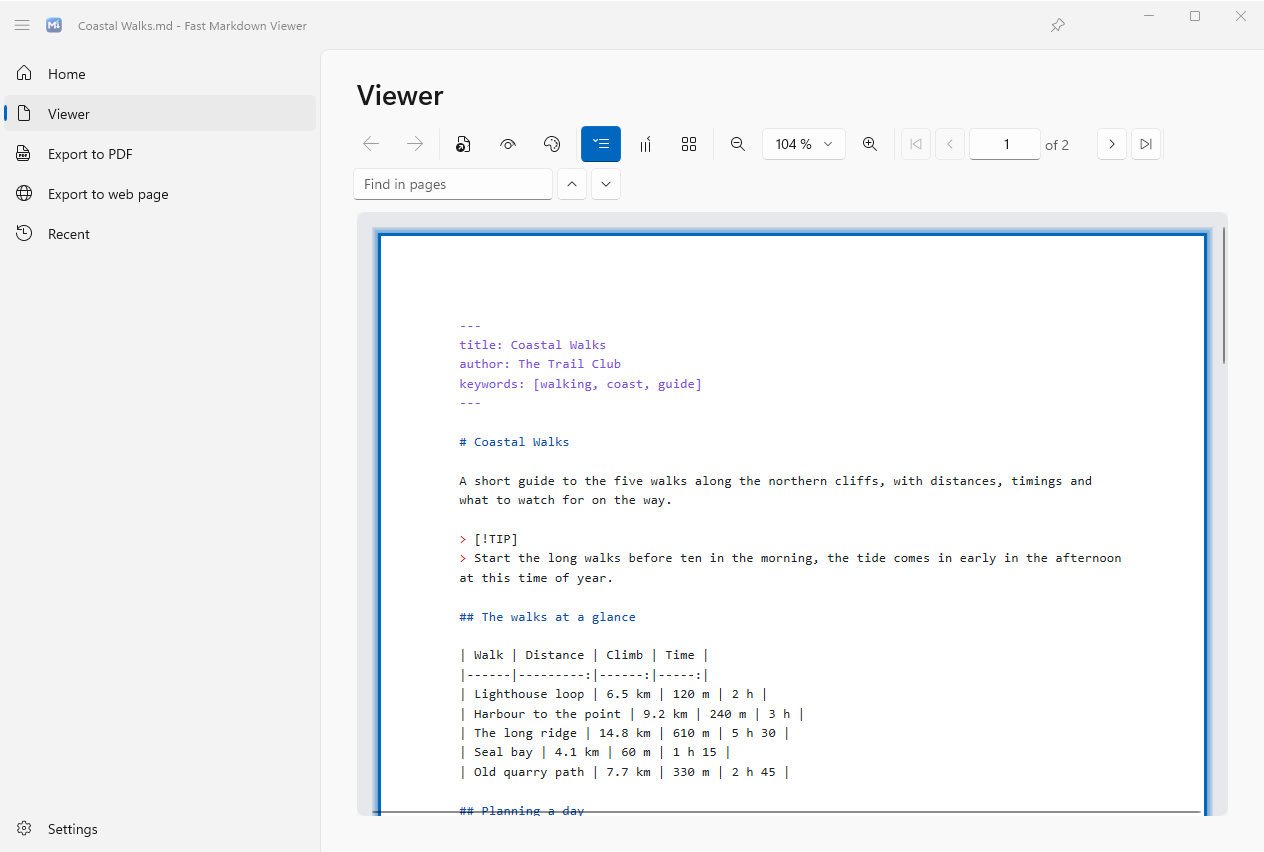
The source is shown on the same pages as the document, so everything works the same way: zoom, the three views, find, selecting part of it or all of it and copying it. Press Ctrl+U again to go back to the pages.
Page Styles
A page style is more than a colour scheme: it sets the fonts, their size, the space between the lines and every colour of the page, the code, the selection and the diagrams included.
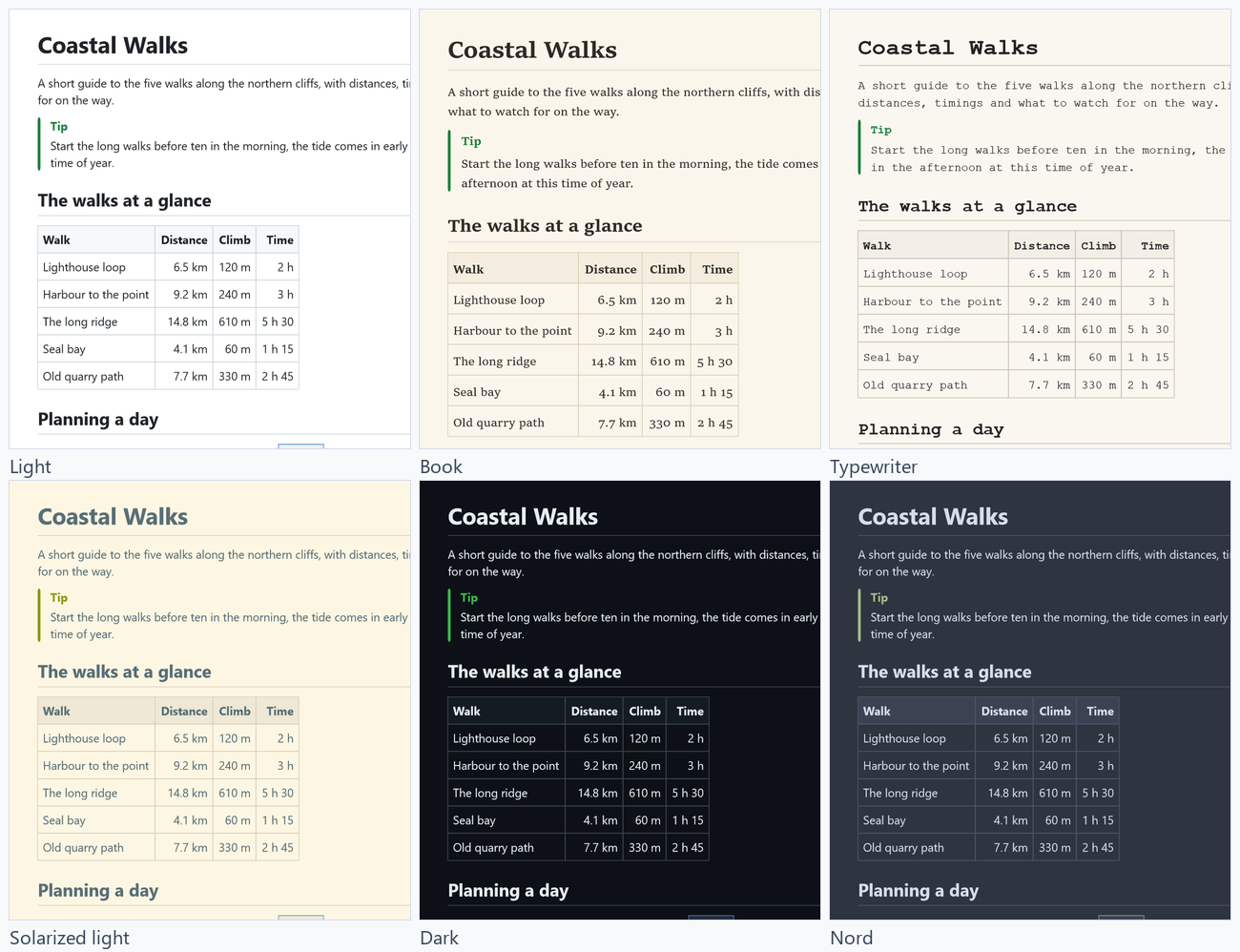
| Style | What it looks like |
|---|---|
| Light | The familiar look of documents on the web, clean and neutral. The default. |
| Modern | Windows 11's own font, a little more air between the lines. |
| Classic | A serif font on white, like a printed report. |
| Book | A reading serif, slightly larger, on warm paper, made for long reading. On screen the paper has a faint grain. |
| Sepia | Soft brown paper, easy on the eyes in the evening, with the same faint grain on screen. |
| Typewriter | Every letter the same width, on cream paper. |
| Solarized light, Solarized dark | The well known low contrast palettes, light and dark. |
| High contrast | Black on white with strong colours, for the sharpest reading. |
| Dark dimmed, Dark | Light text on a dark page, dimmed or deep. |
| Nord | The cool blue grey of the Nord palette. |
| Terminal | Bright green on a dark grey screen, the few colours of an old mainframe terminal kept for what stands out. |
| Glowing terminal | The terminal as a tube screen showed it, the text glowing over faint scanlines and darker corners. Only on screen, a PDF or a picture is drawn clean. |
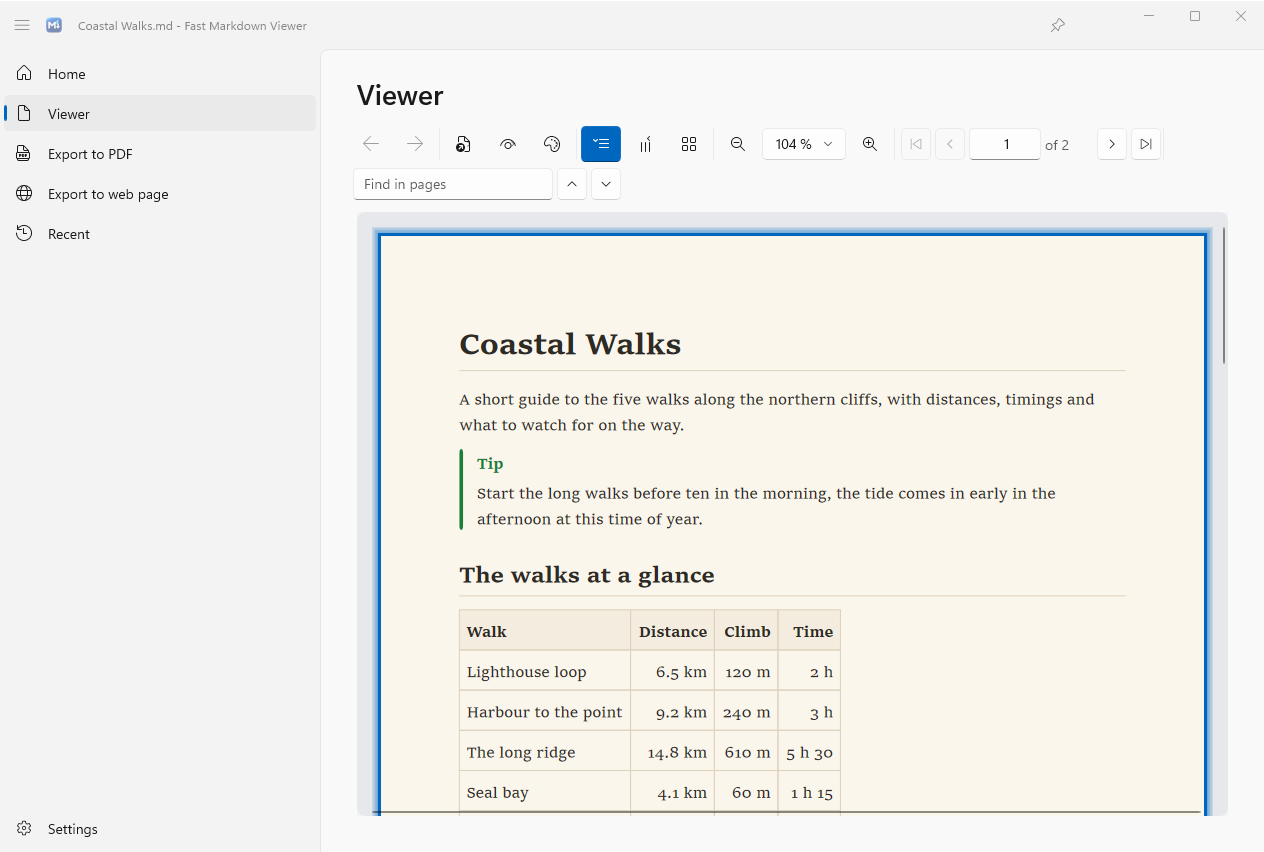
Pick a style from the Page style button of the Viewer, from either export page, or in Settings. It is one choice for the whole app: the pages you read, the PDF, the pictures of pages and the web page you export, and the thumbnails and previews in File Explorer all follow it. The app's own light or dark theme is a separate setting, so you can read dark pages in a light window, or the other way round.
What It Reads
Fast Markdown Viewer reads CommonMark, the standard behind most Markdown, and GitHub's flavour of it, then the extras that documents use every day.
| Feature | Written as |
|---|---|
| Alerts | > [!NOTE], [!TIP], [!IMPORTANT], [!WARNING] and [!CAUTION], each with its colour and its title, in your language. |
| Task lists | - [x] done and - [ ] to do, drawn as ticked and empty boxes. |
| Footnotes | [^1] in the text and [^1]: the note anywhere, numbered in order and gathered at the end of the document. In the PDF the number is a link to its note. |
| Emoji | The 1 913 shortcodes GitHub knows, :tada: or :+1:, drawn in colour, in the PDF too. |
| Front matter | The block between --- lines at the top of a file is never drawn. Its title, author, date and keywords become the PDF's information and the File Explorer details. Its title also names the files you export. |
| HTML | The pieces documents really use: line breaks, <sub>, <sup>, <kbd>, collapsible <details>, centred paragraphs, pictures and links. |
Measured, not claimed. Fast Markdown Viewer passes all 652 examples of the CommonMark specification and all the examples of GitHub's extensions, so a document reads the same here as it does on GitHub.
Diagrams
Write a diagram as text in a mermaid code block and it is drawn on the page. The app draws them itself, with no internet and no script, and they stay sharp at every zoom and in the PDF.
All thirty-two kinds of Mermaid diagrams are drawn, the newest ones included. The first word of the diagram says which it is:
| Diagram | Starts with |
|---|---|
| Flowchart | flowchart, graph |
| Sequence diagram | sequenceDiagram |
| Class diagram | classDiagram |
| State diagram | stateDiagram-v2 |
| Entity relationship diagram | erDiagram |
| Gantt chart | gantt |
| Pie chart | pie |
| Git graph | gitGraph |
| Mind map | mindmap |
| Timeline | timeline |
| User journey | journey |
| Quadrant chart | quadrantChart |
| XY chart, bars and lines | xychart-beta |
| Packet diagram | packet-beta |
| Kanban board | kanban |
| Requirement diagram | requirementDiagram |
| C4 diagrams | C4Context, C4Container, C4Component, C4Dynamic, C4Deployment |
| Architecture diagram | architecture-beta |
| Block diagram | block-beta |
| Radar chart | radar-beta |
| Sankey diagram | sankey-beta |
| Treemap | treemap-beta |
| Venn diagram | venn-beta |
| Tree view | treeView-beta |
| Fishbone (Ishikawa) diagram | ishikawa-beta |
| Railroad diagram | railroad-beta, and its EBNF, ABNF and PEG forms |
| Cynefin framework | cynefin-beta |
| Event model | eventModeling |
| Wardley map | wardley-beta |
| Use case diagram | usecase-beta |
| Swimlane diagram | swimlane-beta |
| Agent flow | agentflow-beta |
A diagram can also be saved alone as a .mmd or .mermaid file, and opens like a document, with its thumbnail and its preview in File Explorer.
A flowchart
```mermaid
flowchart LR
    A([Idea]) --> B{Worth writing?}
    B -- Yes --> C[Draft in Markdown]
    B -- No --> D[Note it for later]
    C --> E[Read it as pages]
    E --> F([Export to PDF])
```

The same, hand drawn
Add look: handDrawn to a diagram's settings and it looks sketched on paper, wobbly double strokes and handwritten labels. The sketch is the same every time you open the file.
```mermaid
---
config:
  look: handDrawn
---
flowchart LR
    A([Idea]) --> B{Worth writing?}
    ...
```

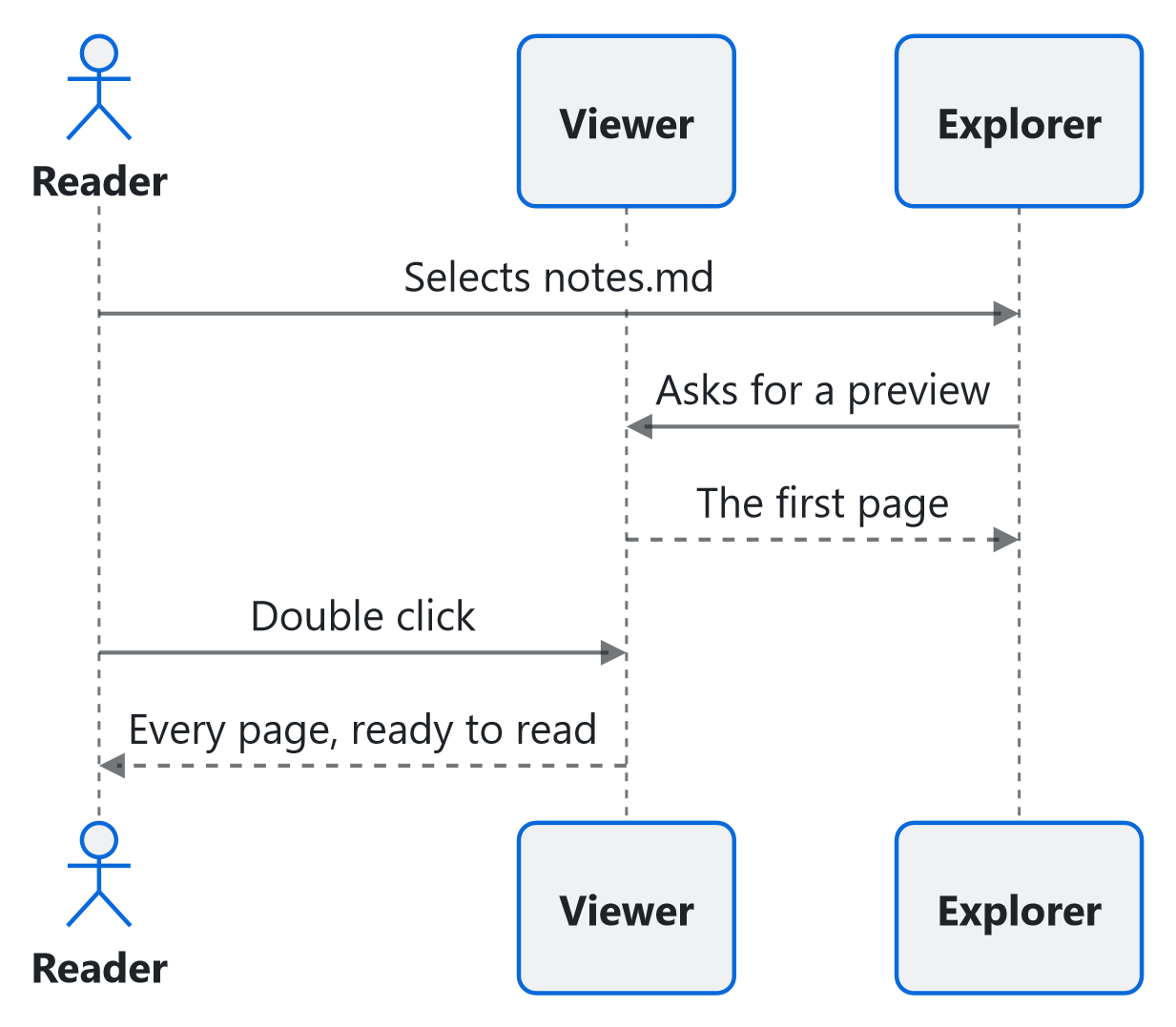
A sequence diagram
```mermaid
sequenceDiagram
    actor Reader
    participant Viewer
    participant Explorer
    Reader->>Explorer: Selects notes.md
    Explorer->>Viewer: Asks for a preview
    Viewer-->>Explorer: The first page
    Reader->>Viewer: Double click
    Viewer-->>Reader: Every page, ready to read
```
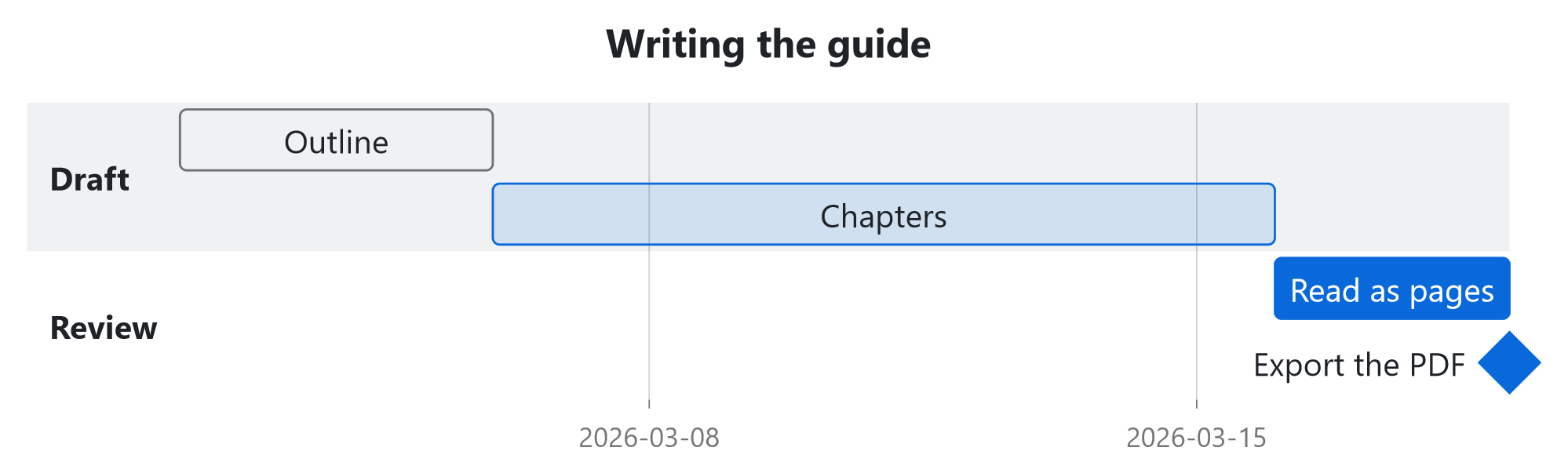
A Gantt chart
```mermaid
gantt
    title Writing the guide
    dateFormat YYYY-MM-DD
    section Draft
    Outline        :done, a1, 2026-03-02, 4d
    Chapters       :active, a2, after a1, 10d
    section Review
    Read as pages  :b1, after a2, 3d
    Export the PDF :milestone, after b1, 0d
```
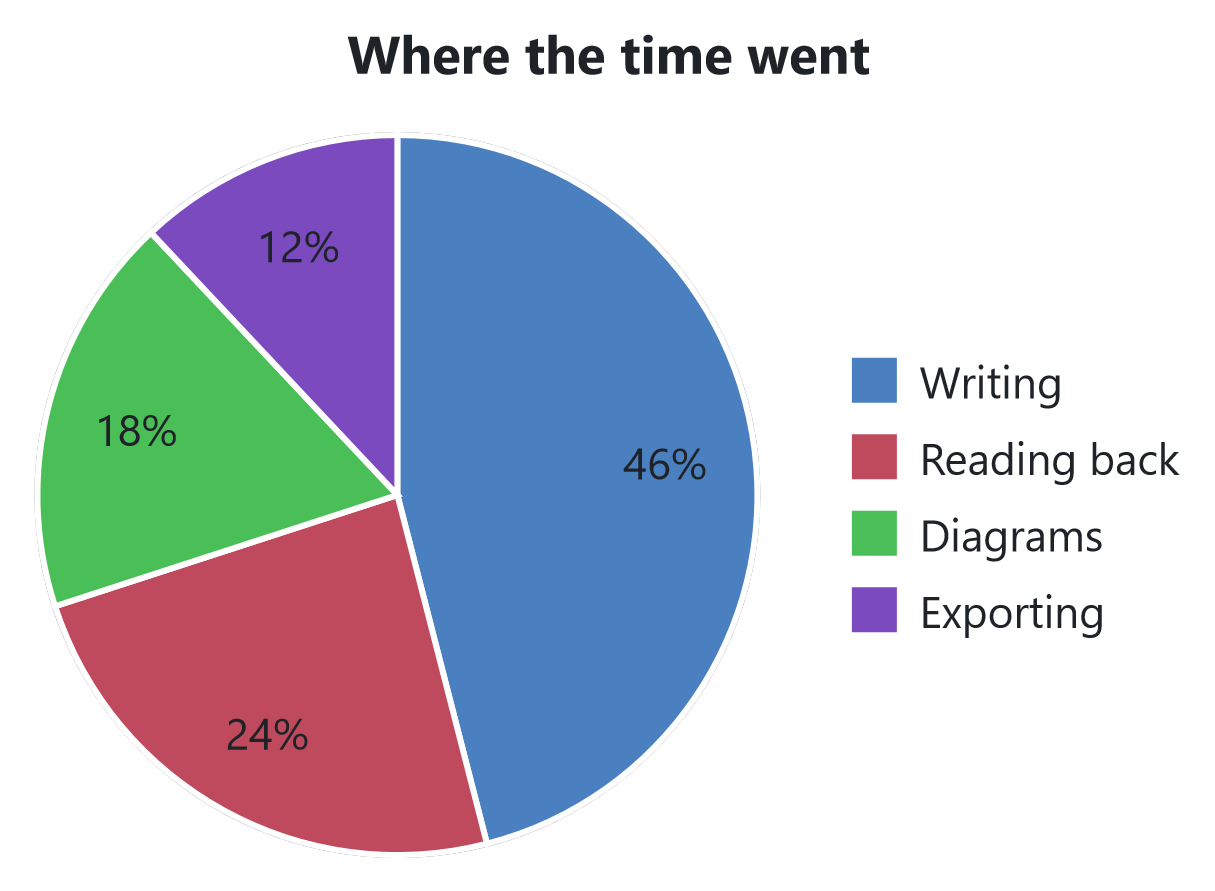
A pie chart
```mermaid
pie title Where the time went
    "Writing" : 46
    "Reading back" : 24
    "Diagrams" : 18
    "Exporting" : 12
```
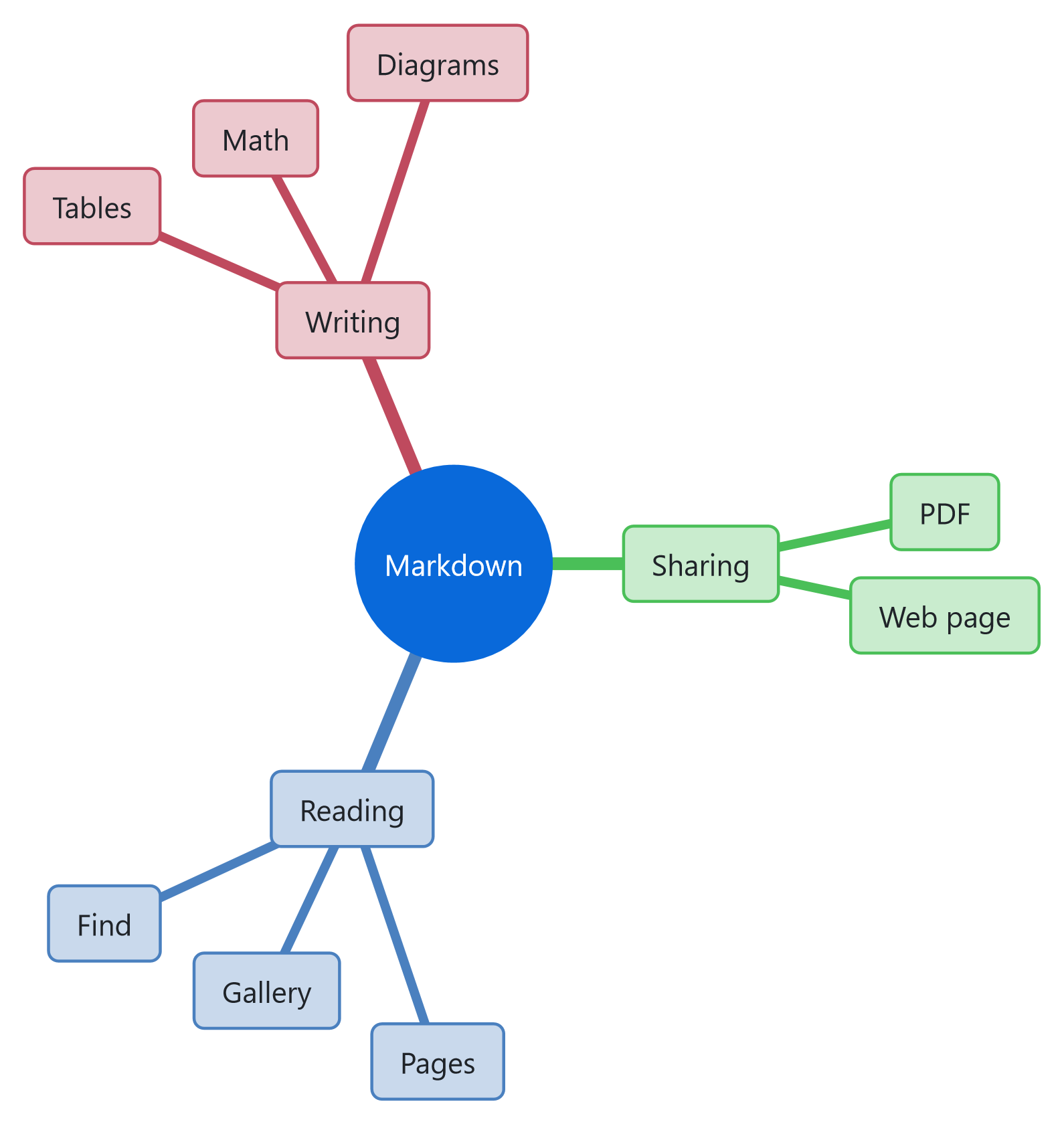
A mind map
```mermaid
mindmap
  root((Markdown))
    Reading
      Pages
      Gallery
      Find
    Writing
      Tables
      Math
      Diagrams
    Sharing
      PDF
      Web page
```
A timeline
```mermaid
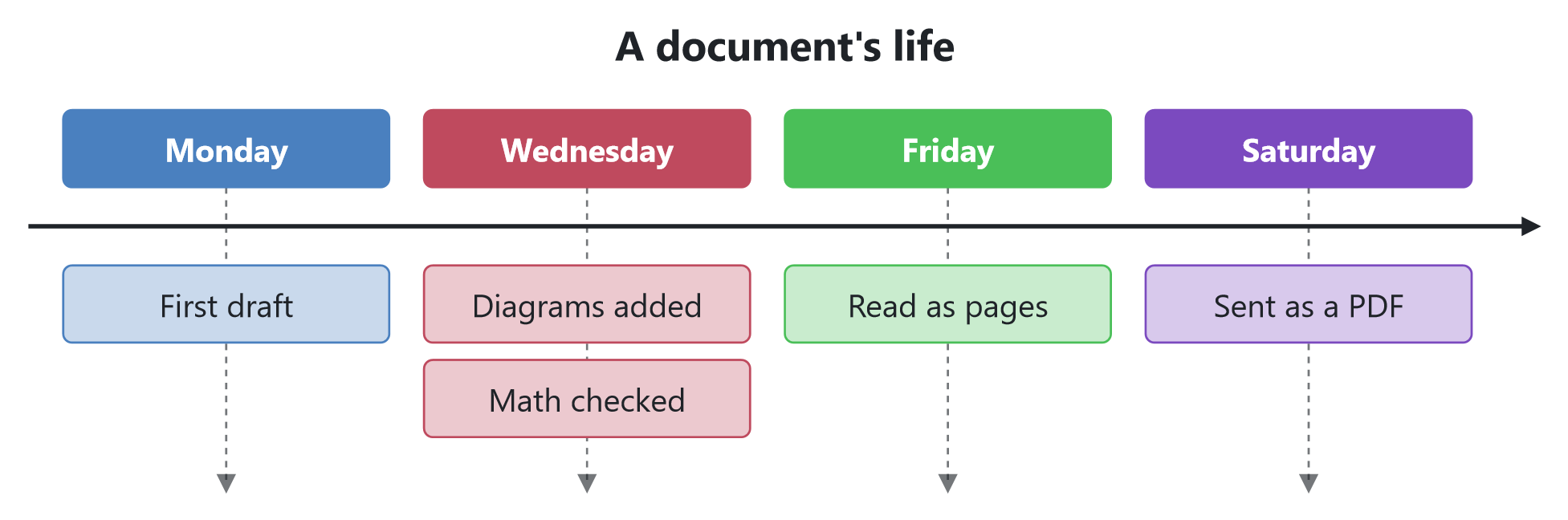
timeline
    title A document's life
    Monday : First draft
    Wednesday : Diagrams added : Math checked
    Friday : Read as pages
    Saturday : Sent as a PDF
```
A quadrant chart
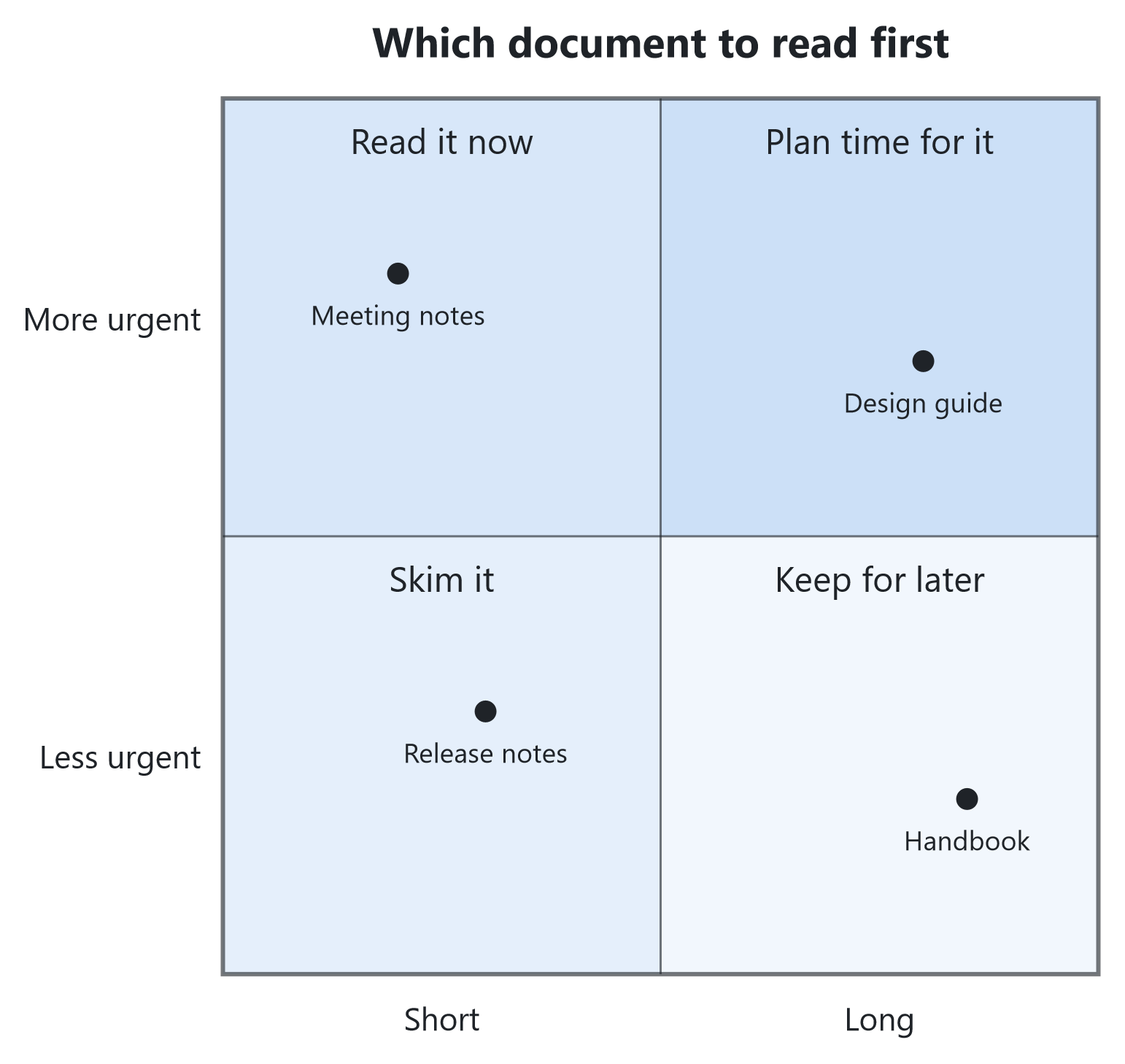
```mermaid
quadrantChart
    title Which document to read first
    x-axis Short --> Long
    y-axis Less urgent --> More urgent
    quadrant-1 Plan time for it
    quadrant-2 Read it now
    quadrant-3 Skim it
    quadrant-4 Keep for later
    Meeting notes: [0.2, 0.8]
    Design guide: [0.8, 0.7]
    Release notes: [0.3, 0.3]
    Handbook: [0.85, 0.2]
```
A Sankey diagram
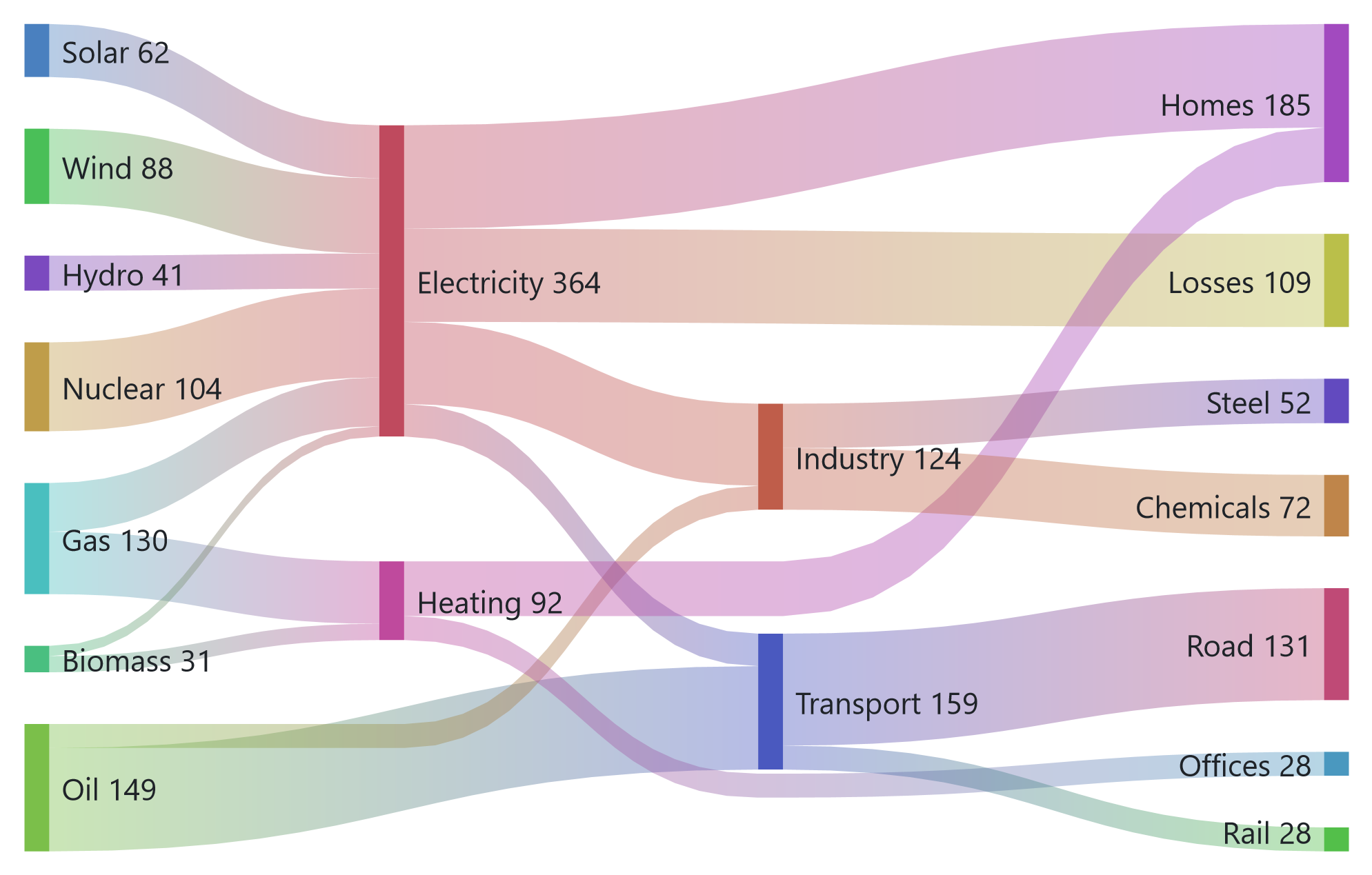
Flows between stages, each band as wide as its amount, with the totals beside each node.
```mermaid
---
config:
  sankey:
    showValues: true
---
sankey-beta
Solar,Electricity,62
Wind,Electricity,88
Hydro,Electricity,41
Nuclear,Electricity,104
Gas,Electricity,57
Gas,Heating,73
Oil,Transport,121
Oil,Industry,28
Biomass,Heating,19
Biomass,Electricity,12
Electricity,Homes,121
Electricity,Industry,96
Electricity,Transport,38
Electricity,Losses,109
Heating,Homes,64
Heating,Offices,28
Transport,Road,131
Transport,Rail,28
Industry,Steel,52
Industry,Chemicals,72
```
Math inside diagrams
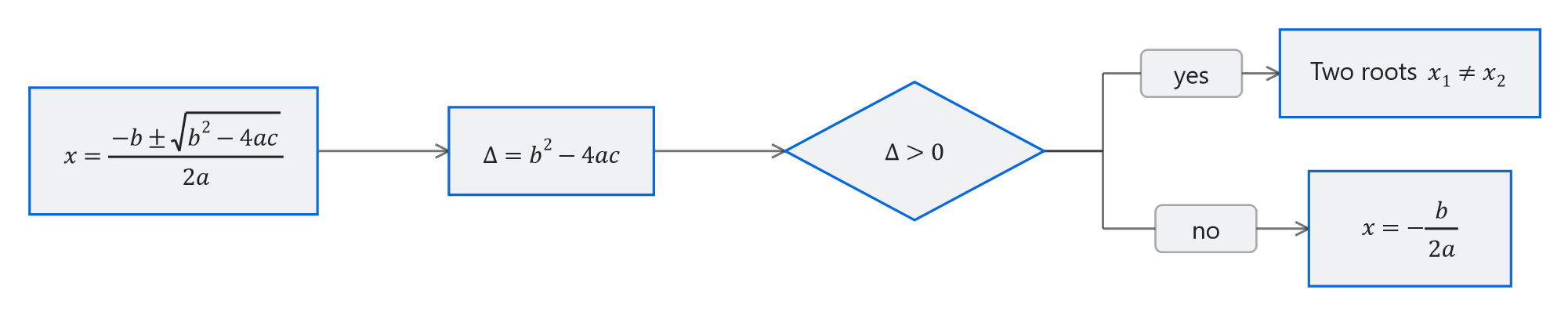
A label can hold a formula: write it between $$ in the label, alone or after some words, and it is drawn with the same math engine as the rest of the page.
```mermaid
flowchart LR
    A["$$x = \frac{-b \pm \sqrt{b^2 - 4ac}}{2a}$$"] --> B["$$\Delta = b^2 - 4ac$$"]
    B --> C{"$$\Delta > 0$$"}
    C -- yes --> D["Two roots $$x_1 \ne x_2$$"]
    C -- no --> E["$$x = -\frac{b}{2a}$$"]
```
Themes and settings
Without a theme of its own, a diagram takes the colours of your page style, so it always matches the page. Name one of Mermaid's ten themes in its settings, default, neutral, forest, dark, base or the newer ones, and it keeps that look whatever the page style. A diagram's own settings, its colours, its direction, its spacing, are read too.
A diagram the app cannot draw, because of a mistake in its text for instance, is shown as its source, and the problems button appears in the command bar with the line at fault, so you can fix the file.
Math
Formulas are written in TeX, the syntax KaTeX and MathJax read and GitHub uses, and drawn by the app itself with the Cambria Math font, no web page and no script involved.
| Written as | Shown |
|---|---|
$v = d / t$ | A formula inside a sentence. |
$$ ... $$ or a math code block | A formula on its own line, centred. |
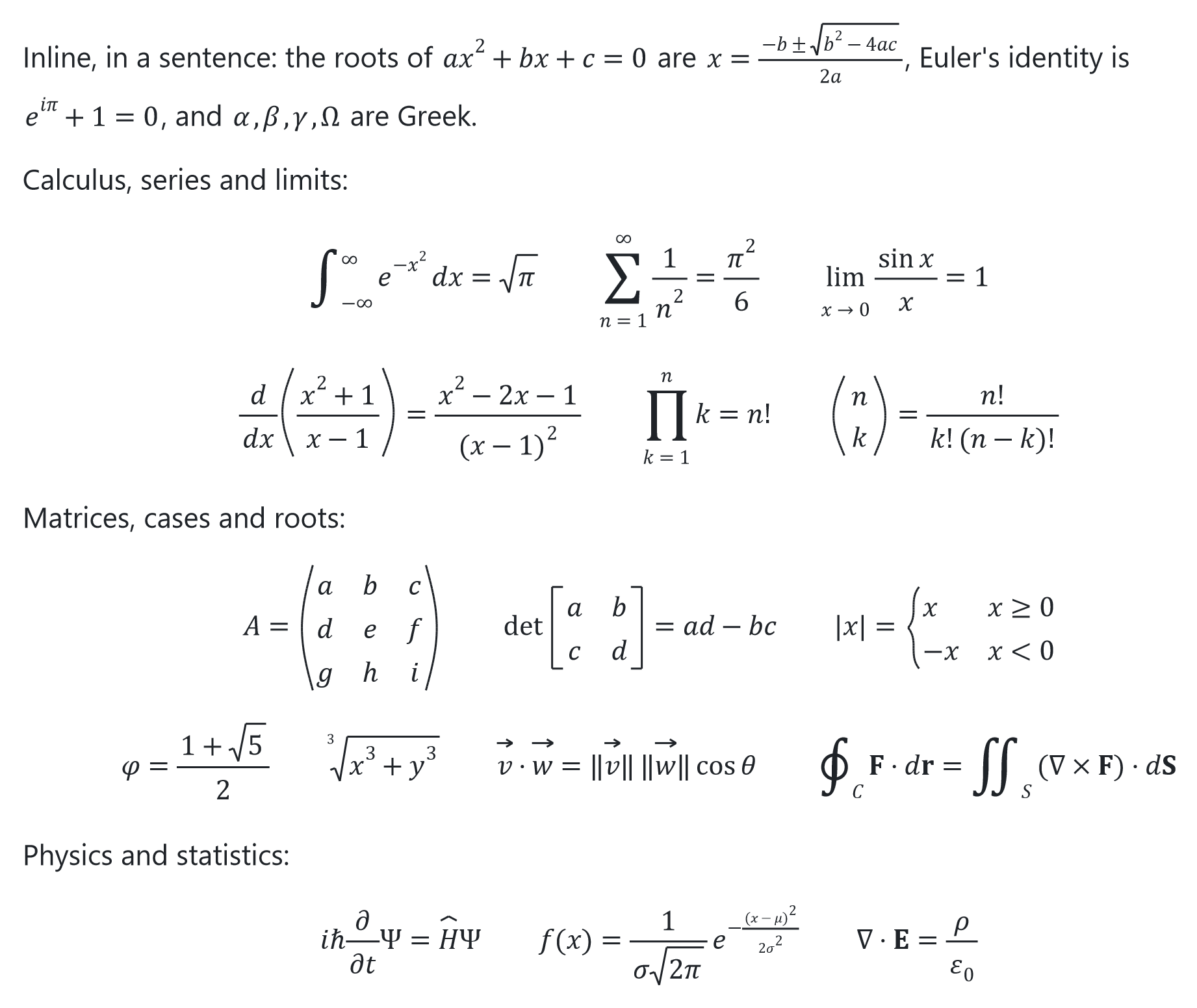
Fractions, roots, sums, integrals, matrices, cases, Greek letters, accents and colours are drawn the way a textbook prints them, and formulas stay sharp at every zoom and in the PDF. Formulas also work inside diagrams.
Paste formulas into Word as real equations. Select text with formulas and copy it: each formula goes to the clipboard as MathML, the standard language of math on the web and in Office, so Microsoft Word, and other programs that read MathML, paste it as an equation you can edit, not as a picture. Programs that only take text get the TeX between dollar signs, $...$ or $$...$$, ready to paste into another Markdown file.
Code
Code blocks are coloured when they name their language: keywords, text, numbers and comments each have their colour, taken from your page style.
The languages coloured are C, C++, C#, Java, Kotlin, JavaScript, TypeScript, Go, Rust, Swift, Python, Ruby, PHP, Lua, shell scripts, PowerShell, batch files, SQL, JSON, YAML, TOML and INI files, CSS, HTML and XML, Markdown itself and diffs. A long line wraps rather than being cut, and a drawing made of characters, a table of boxes or a tree, is made smaller to fit the page rather than broken.
Export to PDF
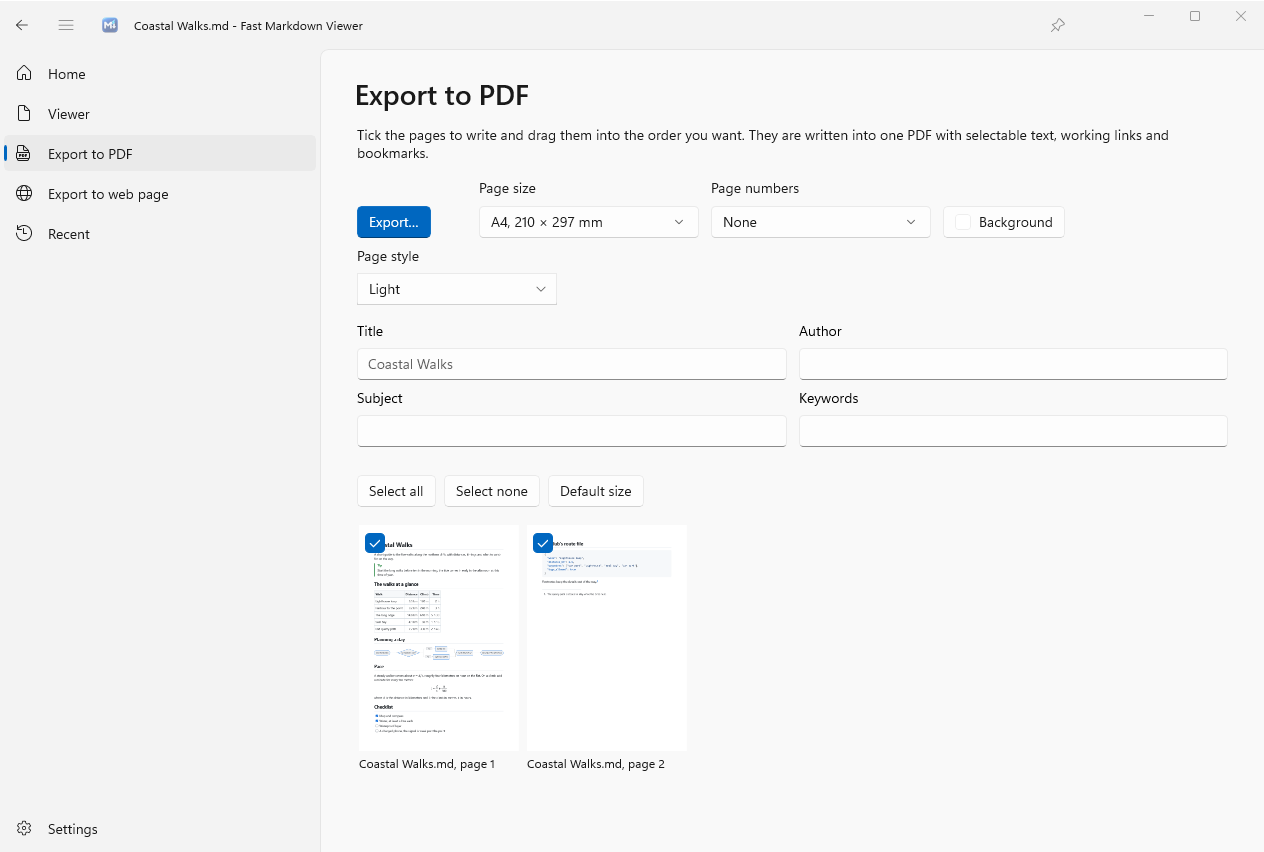
Fast Markdown Viewer writes its PDFs itself, no printer and no driver involved, and gives you exactly the pages you were reading.
What the PDF holds
Real text
The text can be selected, copied and searched in any PDF reader, emoji included. Only the letters used are embedded, so the file stays small.
Working links
Links to the web open, links to headings and to footnotes jump, and links between the documents exported together go to the right page.
Bookmarks
Every document and every heading is a bookmark in the reader's side panel.
Sharp drawings
Diagrams, formulas and SVG pictures are written as drawings, not pictures, so they print sharp at any size. Photos are kept at print quality.
Options
| Option | What it does |
|---|---|
| Pages | Untick the pages you do not want, drag a page to move it, even from one document to another. Select all and Select none help with long documents. |
| Page size | A4 or Letter, the one of your region until you choose. |
| Page numbers | None, the number, or the number and the count, 3 / 10, at the bottom of each page. With several documents a page is numbered within its document, 2.3, and the reader's page box says the same. |
| Background | A colour painted on every page, for slides or a dark handout. |
| Page style | One of the fourteen styles, shared with the Viewer. |
| Title, author, subject, keywords | What readers and search tools show about the file. The title is the first document's own, from its front matter or its main heading, until you type another. |
Click Export…, choose where to save, and the PDF is written in the background. A bar then offers to open it.
The name your files get. The PDF, the web page and the pictures of pages are offered under the first document's name. To choose that name once and for all, write it in a comment at the very top of the file. Other Markdown apps never show a comment.
<!--
output-file: Field guide version 1.0
-->
Write the name without .pdf or .html. It is also the title of the PDF and of the web page, the one the Title box shows in grey. The comment may also follow a front matter block. Without it, the name is the front matter's title, else the PDF and the web page take the main heading and a picture the file's own name. What you type in the Title box, or in the save window, still wins.
A book from a folder. Open a folder of chapters, untick the pages you do not need, and export: you get one PDF with every chapter in order, its bookmarks, its links between chapters and its page numbers.
Export to Web Page
Save the open documents as one web page that opens in any browser, on any computer or phone.
Tick the pages as for the PDF: every document with a ticked page is saved whole, since a web page has no pages, in the order of its first ticked page. The pictures, the diagrams and the formulas are inside the file, so it is a single file you can send or put online. The fonts and colours of your page style come along, and code is coloured.
Pages as Pictures
Right-click a page and choose Save page as image to save it as PNG, JPEG, TIFF, BMP, GIF or any other format your Windows can write, HEIC included when its extension is installed, in the page style you read it in, at a size sharp enough for a slide or a printout.
AI Assistants
If you use an AI assistant on your PC, such as Claude, ChatGPT, GitHub Copilot or LM Studio, it can work with Fast Markdown Viewer for you. Ask it in your own words about the document you are reading, to open a file, or to make a PDF, and it does it in the app.
Reads along with you
Your assistant sees the document you have on screen, and knows the page and the section you are on. Ask it to explain, summarize, translate or check what you are reading, without copying and pasting anything.
Opens files for you
Name a file or a folder and it opens in Fast Markdown Viewer, with the documents it links to if you like, or added after the ones already open. The app starts by itself when it is closed.
Makes PDFs and web pages
Ask for a PDF or a web page of what you have open, with the name and the place you want. It is made exactly as the export pages make it, with your paper, page numbers and ticked pages.
Takes you there
Ask where something is, and your assistant searches every open document, then shows you: the window comes to the front, the words are highlighted and the page turns to them. It can also simply bring the window back when it is lost behind others.
Connect your assistant in two steps
- Allow it. In Settings, under AI assistants, turn on Let AI assistants use Fast Markdown Viewer. It is off until you turn it on, and you can turn it off again at any time.
- Connect your app. Just below, open Connect an AI app and click the button next to the app you use. Most apps then open and ask you to confirm, see the table.
| Your AI app | What happens when you click |
|---|---|
| Claude | Click Save… to save a small extension file. In Claude, open Settings, then Extensions, and drag the file into the window. Claude shows what it does and asks you to Install. |
| ChatGPT and Codex | Click Connect. Fast Markdown Viewer is added to the ChatGPT app for Windows, and to Codex, which share their settings. Close ChatGPT or Codex and start it again to use it. |
| Visual Studio Code | For GitHub Copilot. Click Connect, Visual Studio Code opens a page about Fast Markdown Viewer, click Install there. |
| Cursor | Click Connect, Cursor opens and asks you to confirm. |
| LM Studio | For AI models that run entirely on your PC. Click Connect, LM Studio opens and asks you to confirm. |
| Claude Code | Click Copy and paste the command into a terminal. |
| Another AI app | Click Copy and paste the settings where your app lists its MCP servers. Most AI apps that can use tools on your PC have such a place. |
Check that it works. Open a document in Fast Markdown Viewer, then ask your assistant "What am I reading in Fast Markdown Viewer?". The first time, it may ask your permission to use Fast Markdown Viewer: say yes, for the conversation or for good. In Visual Studio Code, use Copilot's Agent mode.
What your assistant can see
Only what you ask about, and only while Let AI assistants use Fast Markdown Viewer is on. When your assistant asks, it gets the text of the document on screen, the page and the section you are on, and the names of the other open documents. It cannot see your other files through Fast Markdown Viewer, and it cannot change your documents: the app only reads them, and writes the PDFs and web pages you ask for.
Where your text goes next is up to your assistant. Fast Markdown Viewer itself sends nothing anywhere. But an assistant that runs online, as Claude, ChatGPT and Copilot do, sends what it reads to its service to answer you, like anything else you share with it. For a confidential document, use an assistant that runs on your PC, such as LM Studio, or keep the switch off.
Good to know
| Topic | What to expect |
|---|---|
| Very long documents | Your assistant gets the first 200,000 characters or so, about a long book, which leaves it room to think. It is told when a document goes on further. |
| Your files are safe | A PDF or a web page never replaces a file that is already there, unless you clearly say to replace it. |
| One file at a time | Two files are opened at least a couple of seconds apart, so an assistant cannot keep switching what you are reading. |
| The app must be open | To read along or to export, Fast Markdown Viewer has to be running with a document open. Opening a file or switching to the app starts it when needed. |
| After the trial | Assistants can use Fast Markdown Viewer during the free trial. Once it has ended, they can again as soon as the app is bought from the Microsoft Store. |
What to Ask
There are no commands to learn. Talk to your assistant as you would to a person sitting next to you. These conversations show the kind of things that work well, the answers are examples.
About what you are reading
Finding your way
Opening documents
Making a PDF or a web page
Several steps at once
An assistant can chain the steps itself, and do its own part in between.
Say where, in plain words. "On my desktop", "in Documents", "next to the original" are enough, your assistant works out the full place. If it is not sure, it asks you. For a file that already exists, say "replace it" when you mean it.
For the technically curious. Fast Markdown Viewer is an MCP server, the open standard AI apps use to reach tools on your PC, started as fastmarkdownviewer --mcp. Its tools are get_current_document, open, show, find, export_pdf and export_web_page, and any app that speaks MCP can use them.
File Explorer
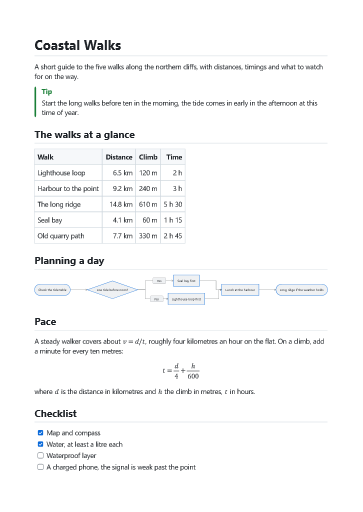
Once installed, File Explorer shows your Markdown files the way the app does, without opening anything.
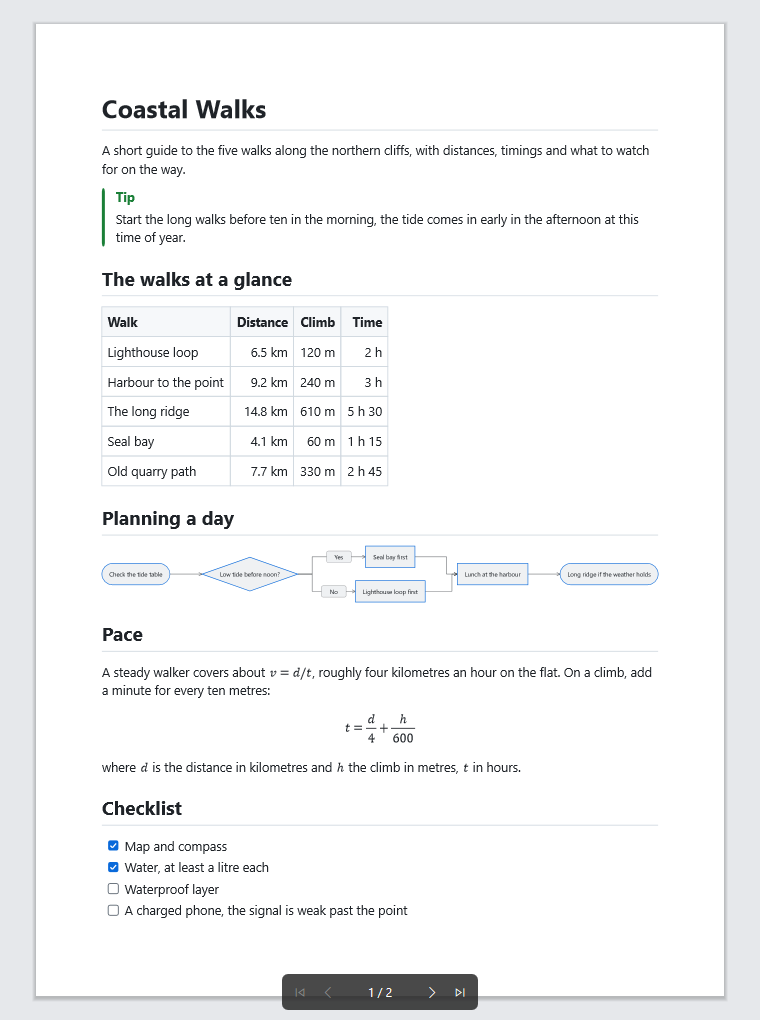
Thumbnails
In the icon views, every Markdown file shows its first page, in your page style. A saved Mermaid diagram shows its drawing.
Preview pane
Select a file and press Alt+P to read it page by page right in Explorer, see below.
Details
The title, the author, the keywords, the date and the number of words show in the Details pane and as columns, taken from the front matter or the main heading.
Using the preview pane
| Action | How |
|---|---|
| Turn the pages | Use the bar at the bottom of the pane, first, previous, the page number, next and last. Or turn the mouse wheel, or right-click for Next page, Previous page, First page and Last page. |
| With the keyboard | Click the pane once, then Page Down and Page Up turn the pages, Home and End go to the first and the last, and the arrows turn the pages too while the page is not zoomed in. |
| Change the style | Right-click and pick a Page style. It lasts for every file you preview until Explorer closes. The style the pane starts with is set in Settings. |
| Zoom in and out | Hold Ctrl and turn the mouse wheel. Once zoomed in, the wheel scrolls the page. |
| Move a zoomed page | Drag it with the left or the middle mouse button. |
| Back to the whole page | Right-click and choose Fit page. |
| Open it | Right-click and choose Open in Fast Markdown Viewer. |
The preview is drawn in the background, so Explorer never waits on a long document. A very large file, tens or hundreds of megabytes, shows its first page at once: the others are measured behind it, and the bar says 1 / 3553+ until the last one is known. A style changed in the app's settings shows in a preview that is already open.
The style of thumbnails and previews
Thumbnails and previews are drawn in the app's page style, unless you pick another one for Explorer in Settings → Windows Explorer → Page style in Explorer: light thumbnails in a dark app, for instance. Windows keeps the thumbnails it has already drawn, so use Reset Explorer thumbnails on the same page to see the new style on them.
When the trial has ended. Once the free trial is over and the app is not licensed, Windows no longer starts Fast Markdown Viewer for Explorer: thumbnails go back to plain icons, the preview pane stays empty and the details are not added. Get the app from the Microsoft Store to have them back. Your files are never changed.
Better Shell Integration (administrator required)
Markdown files are often claimed by a code editor, and Windows then shows that program's plain icons and no preview. Better Shell Integration registers Fast Markdown Viewer's thumbnails, preview and details with Windows itself, so they show whatever app opens your Markdown files.
Your default app stays yours. Keep double-clicking a .md file into your editor, and still get Fast Markdown Viewer's thumbnails, preview and details in Explorer.
Install, update, uninstall
Everything is in Settings → Shell Integration. The card shows whether it is installed and offers Install, Update when a newer app brings a newer version, Reinstall if thumbnails or previews stop appearing, and Uninstall. Each asks for administrator approval, because Windows keeps these registrations in a place only an administrator can change. It is also listed in Settings → Apps → Installed apps and can be removed there.
Give it a minute. After installing, Windows can keep showing the old icons for a while from its own cache. Wait a little, or use Reset Explorer thumbnails in Settings and press F5 in the folder.
Accessibility
The pages are drawn by the app itself, and the app makes sure they are just as readable without seeing them or without a mouse.
Screen readers
Screen readers such as Narrator read the pages as a document, its text by character, word, line or page, and announce each page, Page 3 of 12. Every link is a link they can follow, and the selection is read as you make it.
Keyboard only
Tab goes from link to link across the pages, outlined so you can see it, Enter follows it. Pages, zoom, find, every menu command and every export work from the keyboard, and the shortcuts are shown in the menus in your language.
Contrast and size
The High contrast page style gives black text on white with strong colours, the dark styles suit sensitive eyes, and the zoom goes up to 1600 % with text always redrawn sharp.
Settings
Appearance & behaviour
| Setting | What it does |
|---|---|
| Application theme | The window light or dark, or as Windows is. |
| Page style | The fonts and colours of the pages, see Page Styles. |
| Language | The language of the app, or the one of Windows. |
| Remember recently opened files and folders | Keep the list shown on the Recent page. |
| Include subfolders | A folder opened or dropped brings the Markdown files of its subfolders too. |
| Open linked documents alone | A link to another document opens it in place of the open ones, rather than adding it to them. |
| Refresh automatically | A document changed by another program is shown again as soon as it is saved, where you were reading. |
| Show pictures from the web | Off by default. When on, pictures a document takes from the internet are downloaded and kept for a day. The sites they come from can then see that the document was opened. |
| Pictures from the web are kept in | Where those pictures are kept, how much room they take, and a button to clear them. |
Windows Explorer
| Setting | What it does |
|---|---|
| Shell Integration | Installs, updates and removes Better Shell Integration. |
| Page style in Explorer | The style of the thumbnails and the one the preview pane starts with, the pages' own by default. |
| Reset Explorer thumbnails | Has Windows forget the thumbnails it keeps and draw them again, after a change of style for instance. |
AI assistants
| Setting | What it does |
|---|---|
| Let AI assistants use Fast Markdown Viewer | Off by default. When on, the AI apps you connect can read the document on screen, open files, switch to the app and export, see AI Assistants. |
| Connect an AI app | One button per AI app to connect it: Claude, ChatGPT and Codex, Visual Studio Code, Cursor, LM Studio, Claude Code, or another app. Available while the switch above is on. |
And more
Reset settings brings every setting back to its default, and the licence card shows how long the trial has left.
Keyboard Shortcuts
Files
View
Zoom
Moving around
Find & copy
Tips & Tricks
Write in your editor, read here
Keep your editor on one side and Fast Markdown Viewer on the other, pinned on top. Every time you save, the page updates where you were, so you see your document as pages while you write it.
Long reading
Pick the Book style, go full screen with F11, and turn the pages with Page Down. The contents panel, Ctrl+Shift+T, takes you to any chapter.
Dark pages in the evening
The application theme and the page style are separate: a light window with Nord or Dark dimmed pages, or a dark window with Sepia pages, whatever suits your eyes.
Check a diagram while writing it
Save a diagram alone as a .mmd file and open it: it is redrawn every time you save, and its thumbnail in Explorer shows what it looks like.
Send a web page, not a zip
The exported web page carries its pictures, diagrams and formulas inside, one file that opens on any device, even a phone.
Troubleshooting
A picture from the web shows only its description
Pictures from the internet are not downloaded unless you allow it, so opening a document never tells a website you read it. Turn on Show pictures from the web in Settings.
"File system error (-2143322102)" when opening a file
Your free trial has ended. Windows refuses to start an app whose Store licence is no longer valid, and shows the Store's licensing error without an explanation. Nothing is wrong with the file. Get Fast Markdown Viewer from the Microsoft Store and your files open again.
Thumbnails only show in the icon views
Windows draws thumbnails in Explorer's icon views only. In Details or List view a folder shows the plain file icons, whatever the file. Choose Medium icons, Large icons or Extra large icons from Explorer's View menu, or hold Ctrl and turn the mouse wheel.
Another app shows its icons and no preview
Windows lets only the default app of a file type provide its thumbnails and preview, and Markdown files often belong to a code editor. Install Better Shell Integration, which keeps your default app and still gives you Fast Markdown Viewer's thumbnails and preview, or make Fast Markdown Viewer the default in Windows Settings → Apps → Default apps.
The preview pane stays empty
The preview pane belongs to Explorer and is closed until you open it, in each Explorer window: press Alt+P. On Windows 11 the Details pane and the Preview pane cannot be open at the same time. In Explorer's View → Show → Options, on the View tab, Show preview handlers in preview pane must be ticked.
No preview for files downloaded from the internet
Recent Windows 11 updates block the preview pane for files that carry the "Mark of the Web", downloaded files, for every file type. Right-click the file, choose Properties, tick Unblock at the bottom of the General tab and click OK. Newer updates show a Preview anyway button instead.
The preview stops responding after a double-click (Windows 11)
On recent Windows 11 updates, double-clicking the file you are previewing can leave the preview pane unable to react, for every file type. Close that Explorer window and open a new one, or open the file from inside the app.
My AI assistant says it is not allowed, or that the app is not running
Turn on Let AI assistants use Fast Markdown Viewer in Settings. To read along or to export, Fast Markdown Viewer must also be open with a document in it. The message your assistant passes on says which of the two it is.
ChatGPT, Codex or Claude does not show Fast Markdown Viewer
These apps look for new tools when they start. Close the app completely, from its icon near the clock if it has one, and start it again. In Claude, check that Fast Markdown Viewer is listed and switched on in Settings → Extensions.
"Not found on this PC" when connecting
The AI app you picked is not installed, or Windows does not know how to open it. Install it, start it once, and click Connect again. For an app that is not in the list, use Another AI app → Copy.
Claude warns that the extension is not verified
Claude shows this for every extension installed from a file rather than from its own directory. The file comes from Fast Markdown Viewer's Settings, on your own PC, and only starts Fast Markdown Viewer.
A quick rating on the Microsoft Store is the best way to say thanks. It helps other readers find Fast Markdown Viewer, and it takes less than a minute.
★ Rate Fast Markdown Viewer on the Microsoft Store