
Automatic
Pixel Ruler
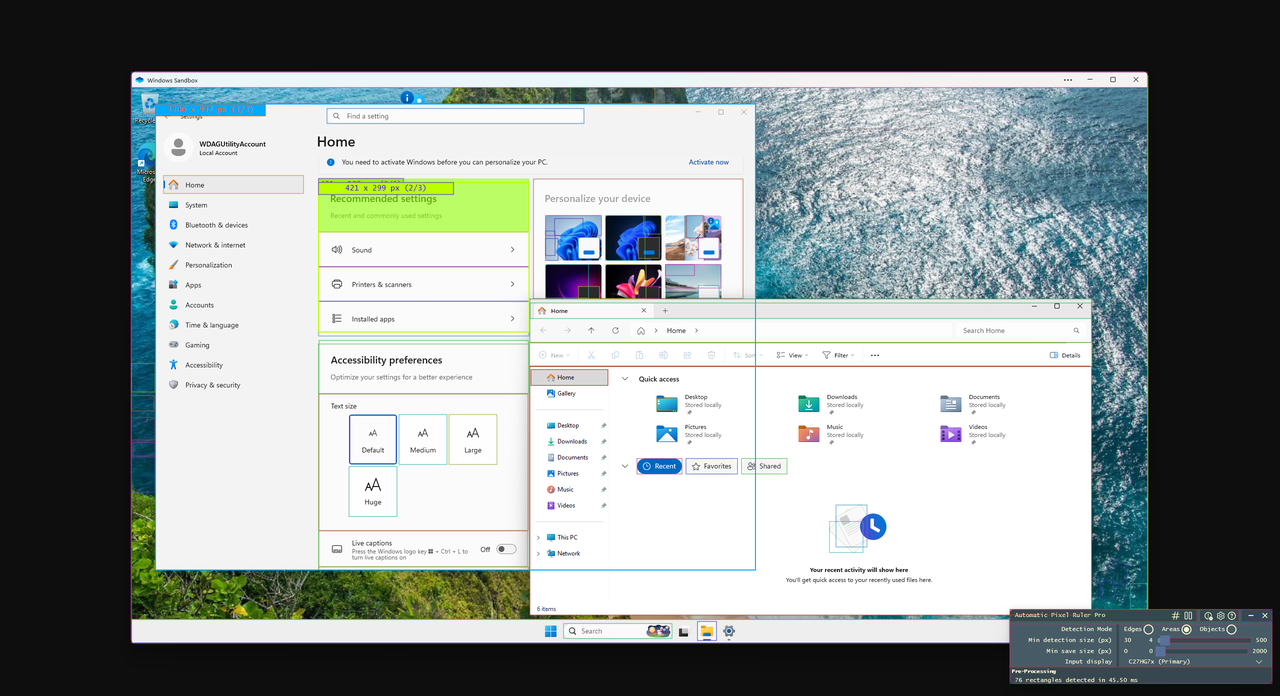
Measure what's on your screen without drawing a single line. Automatic Pixel Ruler finds the rectangles in any window, image or remote desktop, and shows their width and height as you move the mouse.
Overview
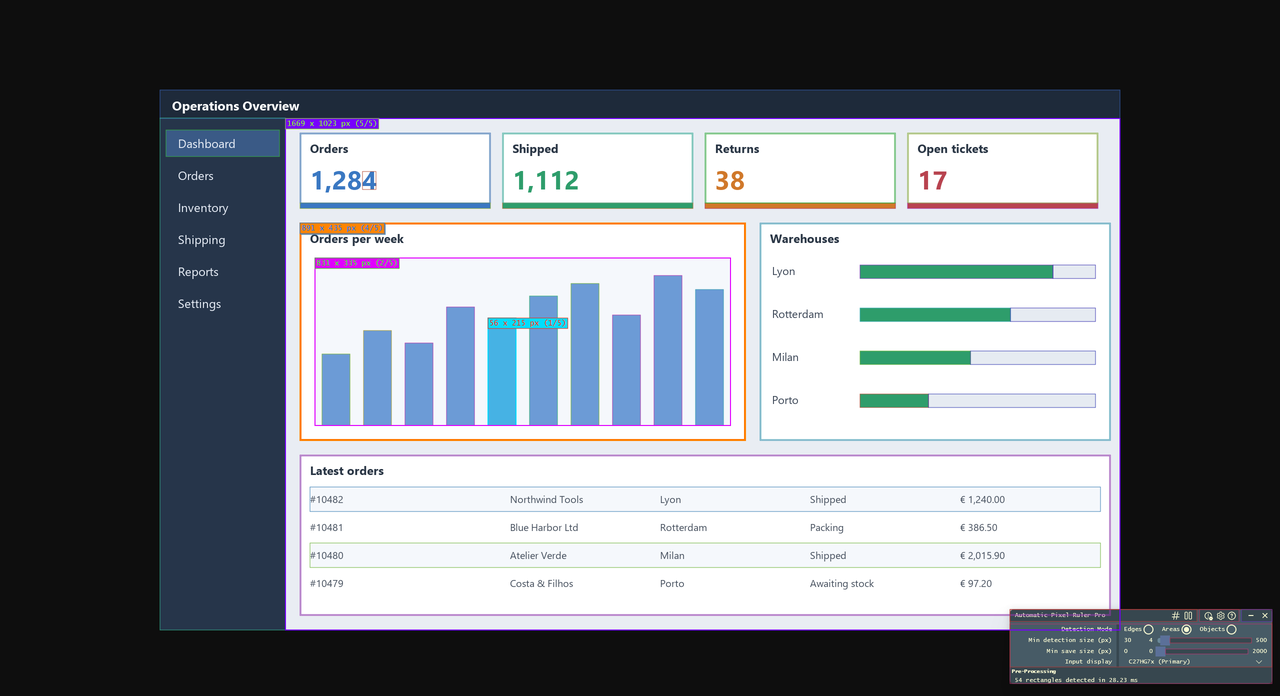
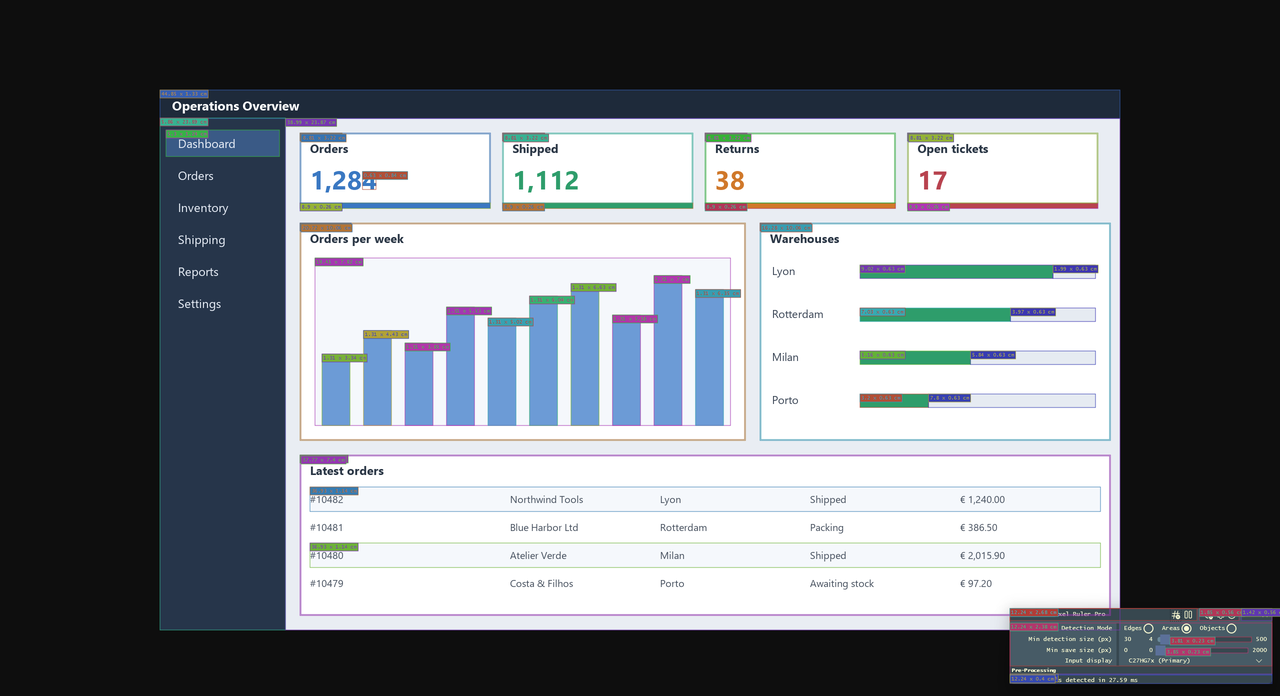
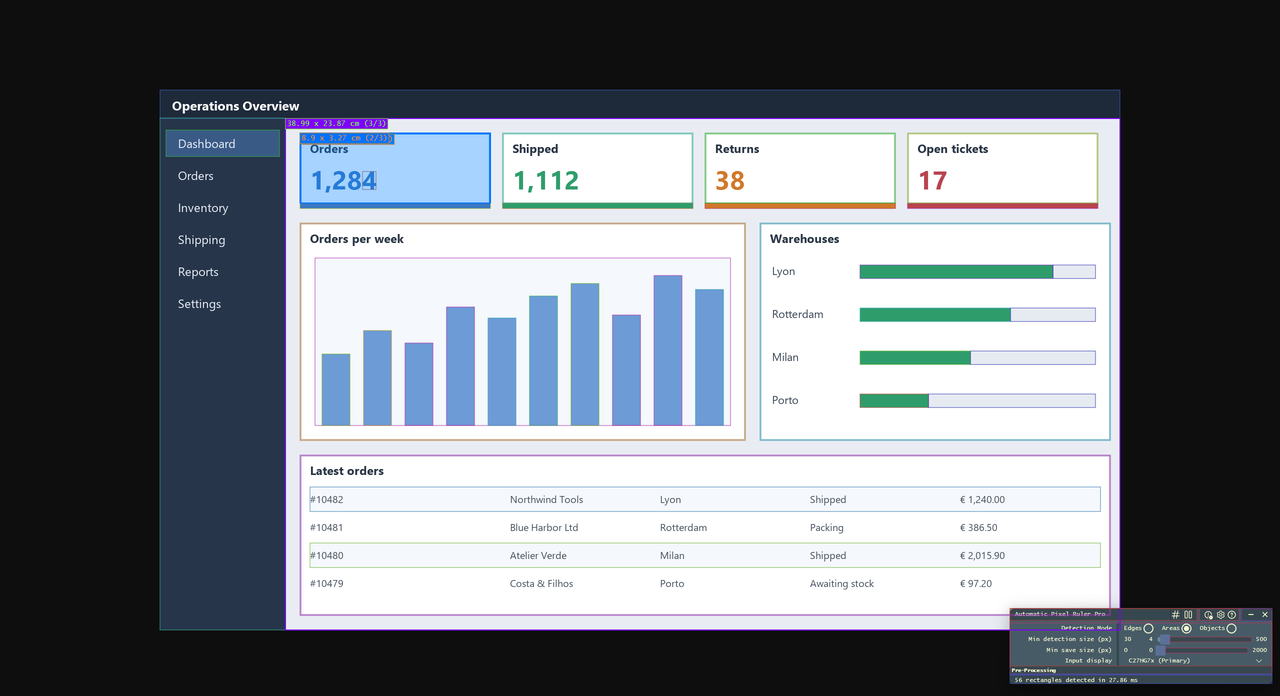
Automatic Pixel Ruler captures your screen continuously, looks for flat areas, shapes and edges, and outlines every rectangle it finds: title bars, buttons, panels, images, table cells, sections of a web page, rooms on a floor plan. Move the mouse over one of them and its dimensions appear. Nothing to drag, nothing to click.
Most screen rulers measure one spot, under the cursor, when you ask. Automatic Pixel Ruler measures everything on screen at once, and keeps doing it while you work. Because it reads pixels, not the structure of an application, it works on anything Windows can display:
- Desktop applications and web pages.
- Remote desktops, Windows Sandbox, Hyper-V and other virtual machines, where no inspector can reach the application.
- Screenshots, mockups delivered as images, photos and paused video.
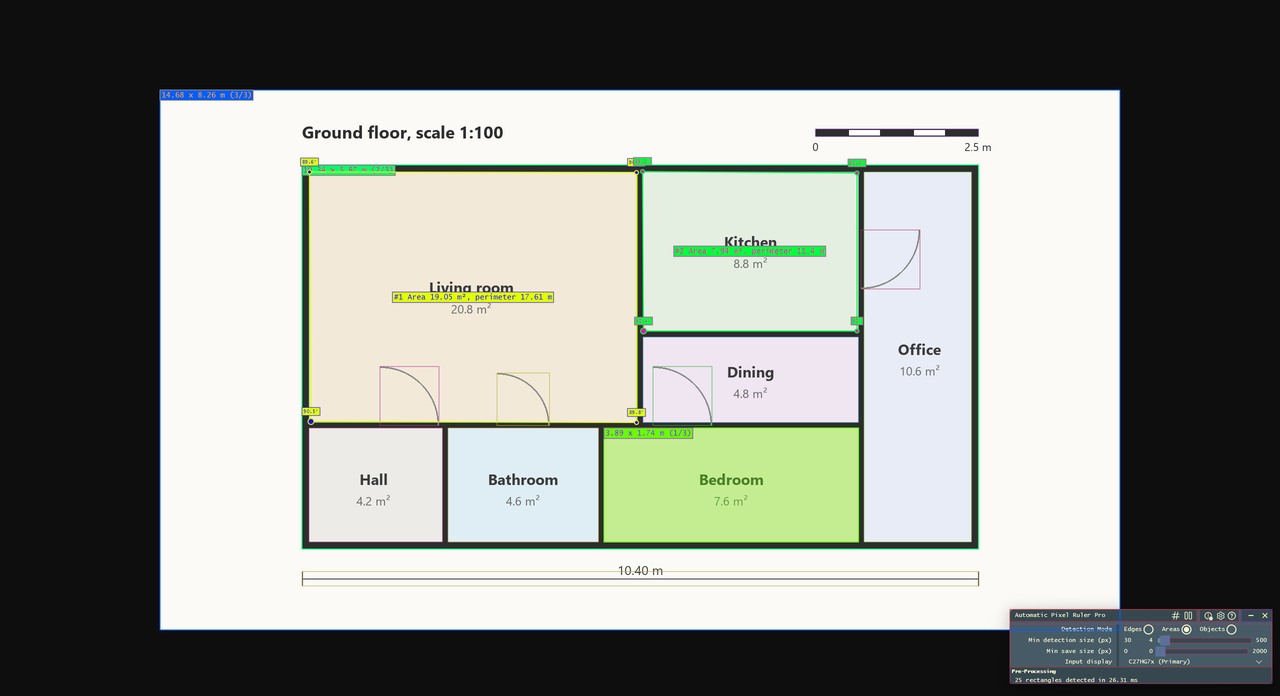
- Floor plans, drawings, maps and scanned documents, measured in real-world units.
Key Capabilities
.apixruler files.Free and Pro
Automatic Pixel Ruler is free. Detection, highlighting, units, the special effects, presets and saving the highlighted elements are free and stay free. The optional Automatic Pixel Ruler Pro add-on, a one-time purchase in the Microsoft Store, adds the tools for measuring and reporting:
| Feature | Free | Pro |
|---|---|---|
| Automatic detection, highlights, every dimension | ✔ | ✔ |
| Pixels, inches, centimeters, millimeters | ✔ | ✔ |
| Detection modes, pre-processing, special effects, presets | ✔ | ✔ |
| Saving the highlighted elements as PNG | ✔ | ✔ |
| Measuring a line between two points | ✔ | ✔ |
| Calibration to the real units of what you measure | ✔ | |
| Paths, angles and areas, measurements kept on screen | ✔ | |
| Exporting measurements as a table, a CSV file and an annotated image | ✔ | |
| Saving every detected element at once, with a minimum size | ✔ |
The title bar says Automatic Pixel Ruler Pro when the add-on is active, and the About dialog shows the edition. Using a Pro feature without the add-on shows a short notification next to the mouse pointer, and nothing else changes. Get the add-on with the Get Pro button of the About dialog.
System Requirements
| Component | Requirement |
|---|---|
| Operating system | Windows 10 version 2004 (May 2020 Update, build 19041) or later. |
| Recommended | Windows 11. On Windows 10 the overlay cannot let mouse and keyboard input through to the applications below it, see Windows 10. |
| Graphics | A Direct3D 11 capable GPU. Capture, pre-processing and rendering all run on the GPU. |
Getting Started
When Automatic Pixel Ruler starts, its main window opens in the bottom-right corner of the primary monitor, and a transparent overlay covers the screen and starts detecting rectangles right away.
- Start Automatic Pixel Ruler. Colored outlines appear around the rectangles found on screen.
- Move the mouse over an element. Every rectangle under the pointer is highlighted with its width and height, for example
320 × 48. - Press Left Ctrl to step through nested rectangles under the pointer, a button inside a panel inside a window.
- Press Right Ctrl to save the highlighted elements as PNG images.
- Press Ctrl+Shift+X to draw a line and measure between two points, and Esc to stop.
Every action is confirmed by a short notification next to the mouse pointer. It can be turned off in Settings. The Keyboard Shortcuts button of the About dialog lists every key, see Keyboard Reference.
The status bar at the bottom of the main window shows how many rectangles were detected in the last frame, and how long it took. If the screen looks too busy or too empty, see Tuning Detection.
Measuring
Outlines and highlights
Every detected rectangle gets a thin colored outline. The color comes from the rectangle's position, so a given element keeps the same color from one frame to the next.
Rectangles under the mouse pointer are highlighted: a thicker outline and a larger label with their width and height.
When several rectangles are stacked under the pointer, the label also says which one it is,
640 × 480 (2/5) is the second of five highlighted rectangles.
One of the highlighted rectangles is the active one. It is drawn with a semi-transparent fill. Press Left Ctrl to make the next one active. Moving the mouse starts the list over.
Showing every dimension
By default only highlighted rectangles show a label, so the screen stays readable. The button in the title bar of the main window puts a label on every detected rectangle, and goes back to highlighted ones only.
Units and physical sizes
Dimensions are in pixels by default. In Settings you can switch to inches, centimeters or millimeters. Physical units are computed from the monitor's raw DPI, read from its hardware description (EDID), so a 5 cm label means 5 cm on the glass, whatever the resolution or the Windows scaling. This is what makes the app useful on floor plans and drawings displayed at a known scale.
When all displays are captured, each rectangle uses the DPI of the display that shows most of it.
Calibration (Pro)
Monitor DPI gives the size of what is on the glass. Calibration gives the size of what the image shows: millimeters on a scan, meters on a plan, microns under a microscope, whatever the zoom.
- Display an image with a known length on it, a scale bar, a ruler, a dimensioned wall.
- Press Ctrl+Shift+X at one end of that length, and move the mouse to the other end.
- Press Shift+Left Ctrl. A dialog asks for the real length, for example
50or2,5, and its unit: µm, mm, cm, m, km, in or ft.
From then on every dimension, every length and every area is shown in that unit, until you choose another unit or click Clear Calibration in Settings. A calibration applies to images displayed at the same zoom, so calibrate again after zooming the image.
Measuring with lines
For lengths that are not rectangles, or to check a detected value, draw a line:
- Put the pointer on the start point and press Ctrl+Shift+X.
- Move the mouse. A line follows it, labeled with its length and with the horizontal and vertical span it covers, for example
125 px (100 x 75 px). - Press Ctrl+Shift+X again or Esc to stop.
While a line is being drawn, the labels of the detected rectangles are hidden, so the line and its own label stay readable. The shortcut can be changed in Settings.
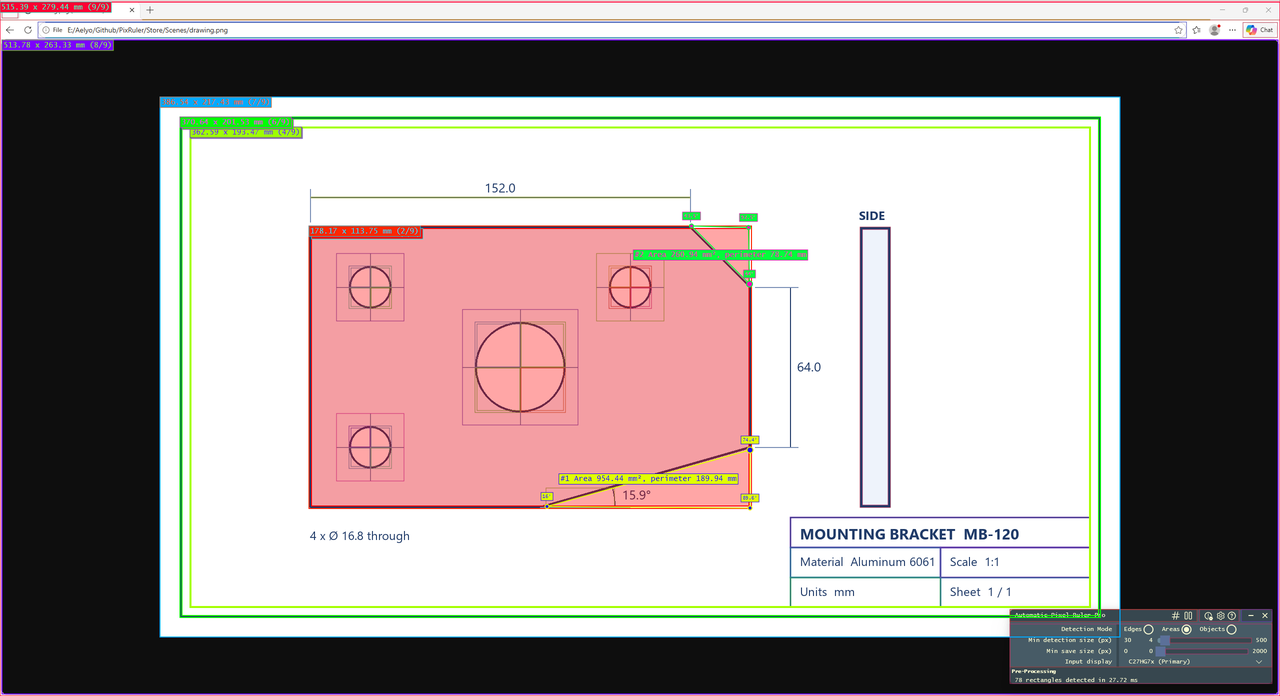
Paths, angles and areas (Pro)
While a line is being drawn, keys on the left side of the keyboard turn it into a measuring tool, so the right hand stays on the mouse. They act when pressed and released on their own, so nothing else changes in the application you are measuring.
| While drawing | Effect |
|---|---|
| Left Ctrl | Adds a point where the pointer is. The line becomes a path, and each corner shows its angle. |
| Left Shift | Keeps the measurement on screen and stops drawing. With the pointer back on the start point, it closes the shape and keeps its area and perimeter. |
| Shift+Left Ctrl | Uses the length drawn so far to calibrate. |
| Esc | Stops drawing without keeping anything. |
Every point placed is marked with a dot, the start point with a larger one, so you see where a line begins even before moving the mouse. With three points or more, the label also gives the area and the perimeter the shape would have if it were closed, and a thin line shows the side closing it would add. Bring the pointer back on the start point and the label shows the closed shape.
Kept measurements are numbered, #1, #2, and each has its own color.
Numbers always run from 1 without gaps: deleting a measurement renumbers the ones after it.
They stay where they were drawn on the screen and follow any change of unit or calibration.
To delete one, put the pointer on its line or its label and press Shift+Left Ctrl.
With the pointer on none of them, the same keys delete them all.
Saving & Exporting
Automatic Pixel Ruler can save detected elements as PNG images, cropped exactly to the rectangle. The images come from the original screen capture, so they contain no outline, no label, and no pre-processing effect.
| Key | Saves |
|---|---|
| Right Ctrl | Every rectangle currently highlighted under the mouse pointer, one file each. |
| Shift+Right Ctrl (Pro) | Everything: every rectangle detected on screen, one file each, and every kept measurement, see below. Min save size, in the main window, skips the rectangles smaller than that size squared, 0 keeps them all. |
Files go to the Windows Screenshots folder, usually Pictures\Screenshots. They are named like this:
That is the app name, the date, the number of seconds since midnight, and the position of the rectangle in that save, starting at 0. All files saved by one key press share the same time stamp.
Each image carries its details, shown by File Explorer in the file's properties: the program, the date, and when a unit other than pixels is chosen, the size of the element in that unit as its title.
Exporting measurements (Pro)
| Key | Exports |
|---|---|
| Right Ctrl on a kept measurement | That measurement. Its values are copied to the clipboard, and an image cropped around it is saved, with the measurement drawn on it. |
| Shift+Right Ctrl | Every kept measurement. The table is copied to the clipboard, and an image of the whole screen is saved, with all of them drawn on it. |
"On a kept measurement" means the pointer is on its label, or close to one of its lines.
Each export also writes a .csv file next to the image, with the same name.
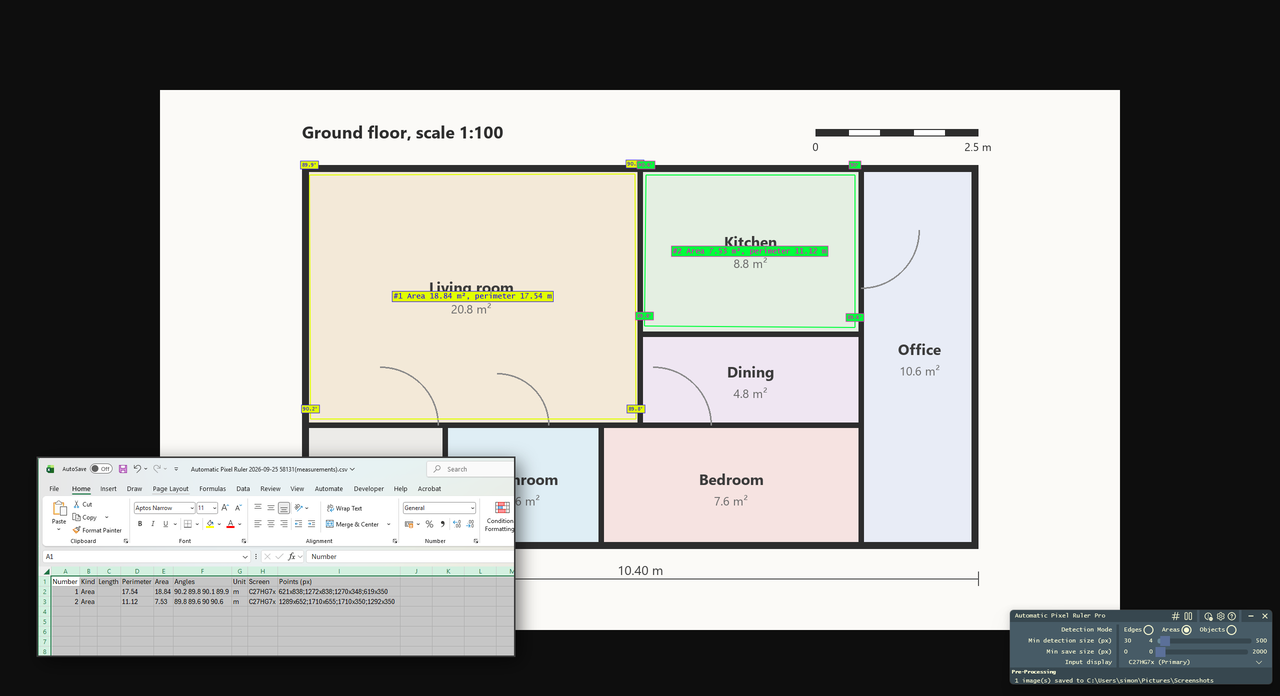
It opens in Excel directly as columns, and the table copied to the clipboard pastes into a spreadsheet the same way:
| Column | Contents |
|---|---|
| Number | The measurement number shown on screen. |
| Kind | Line, Path or Area. |
| Length, Perimeter, Area | The values of the measurement, in the current unit. |
| Angles | The angle at each corner, in degrees. |
| Unit | The unit of the values, px, mm or a calibrated unit. |
| Screen | The display that shows most of the measurement. |
| Points (px) | The corners in screen pixels, like 222x492;292x229. |
The images drawn for an export show the measurements only, without the outlines of the detected rectangles. Their details in File Explorer hold the measurement as the title and the table as comments.
Examples
An application window
A floor plan, calibrated
A drawing, paths and angles
Exporting measurements
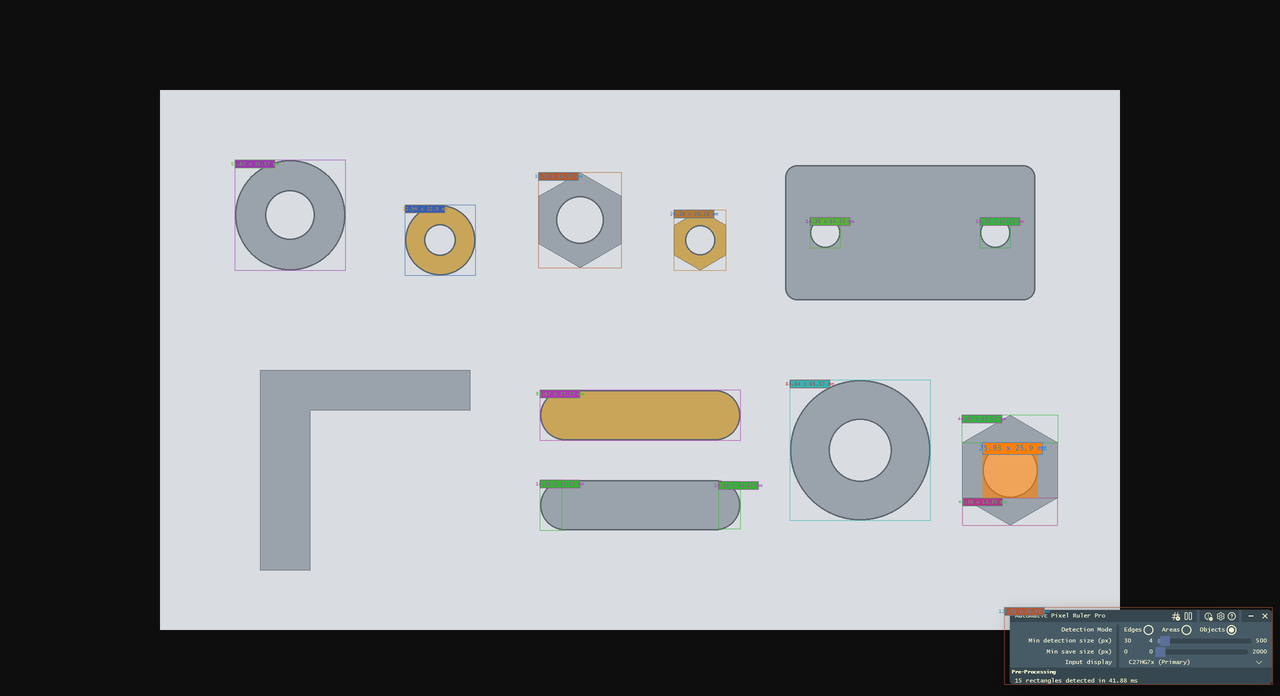
Figures on a background
A remote desktop
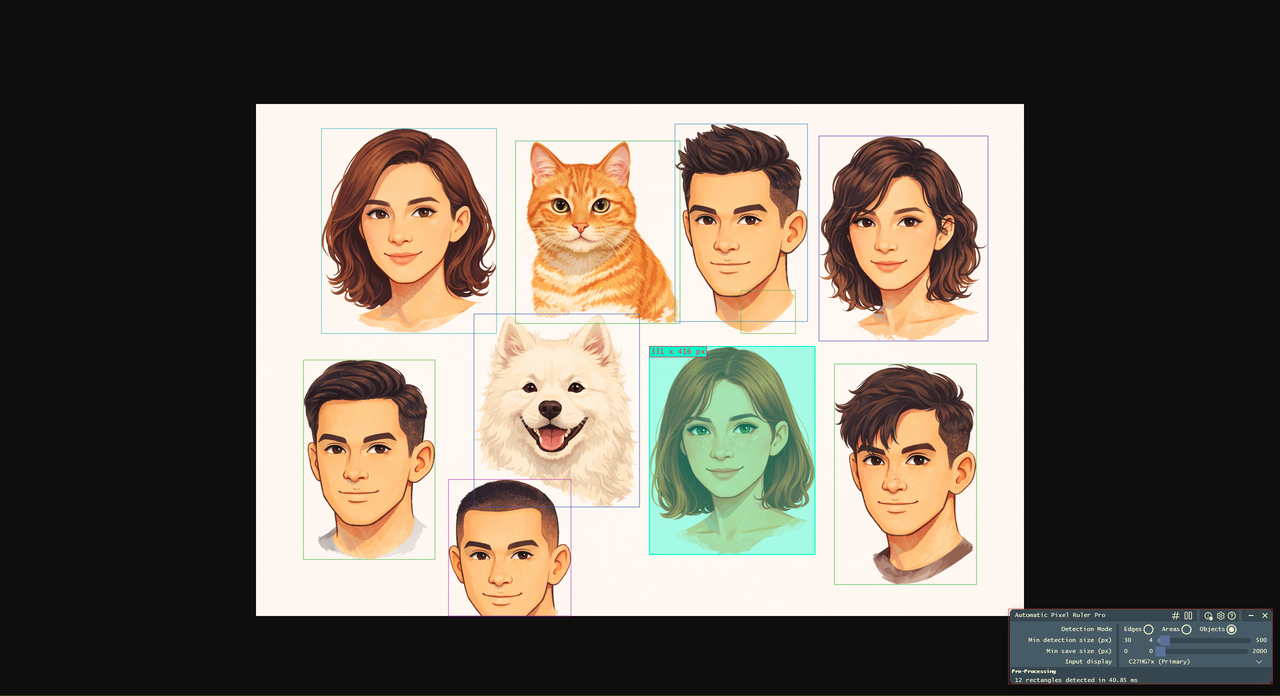
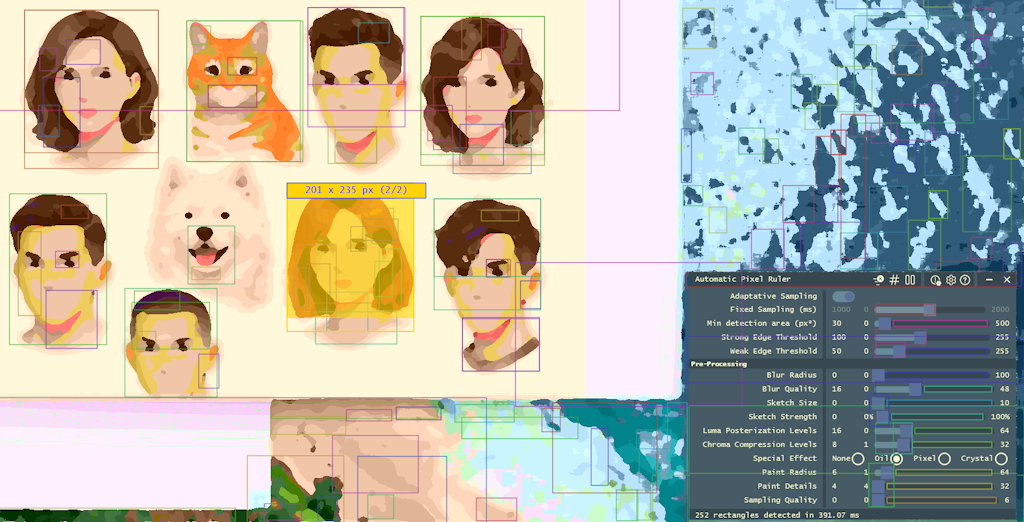
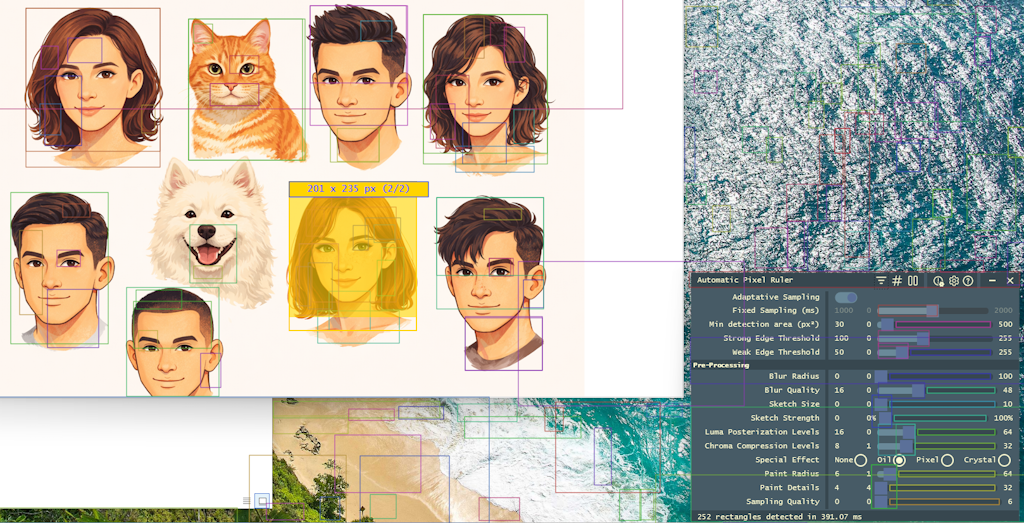
A photo, with and without pre-processing
The Main Window
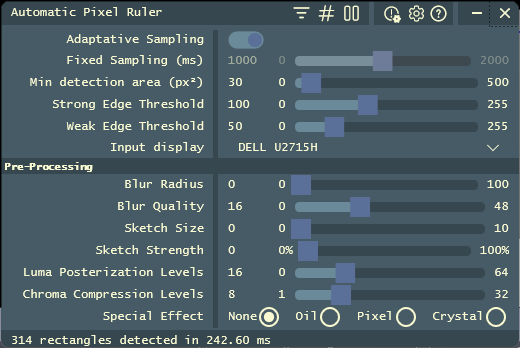
The main window is a compact panel that can be moved anywhere and resized horizontally. It has a title bar with buttons, a property grid with every detection parameter, and a status bar. The window itself is excluded from screen capture, so it never ends up in detections, saved images or recordings.
Dragged close to an edge or a corner of any monitor, the window snaps to it, leaving a small margin set in Settings. Keep dragging to pull it away. When its height changes, for example when you switch detection mode, it grows away from the nearest screen corner, so a window parked in a corner stays there.
Title bar buttons
- About, with system information, this guide and the Microsoft Store page. See Support & Licensing.
- Settings: units, the manual measurement shortcut, and presets. See Settings & Presets.
- Reset every detection parameter to its default value, after a confirmation.
- / Pause or resume capture. While paused, the overlay and its measurements are gone, which is handy to change settings or use the screen normally.
- / Label every rectangle, or only the highlighted ones.
- / Show the pre-processed image in the overlay, or the original screen. The pre-processed image is what the detector actually sees.
Editing values
Every parameter applies immediately. Drag a slider, or click the number next to it and type a value. While typing, Up and Down change the value by 1. Drag the column divider to resize the names and values columns.
Tuning Detection
The defaults work well on ordinary application windows. Photos, drawings and busy pages usually need a few adjustments.
Detection mode
The first setting of the main window chooses how rectangles are found. Each mode suits a different kind of content.
| Mode | How it works | Best for |
|---|---|---|
| Areas | Finds regions of flat color and measures each one exactly, including faint separators and borders only a few shades apart. | Application windows, web pages, remote desktops and virtual machines. This is the default. |
| Objects | Takes the background color from the edges of the screen, and measures every shape that stands out from it. | Figures, parts or scans on a plain background, one box per object. |
| Edges | Follows contrast lines in the image after pre-processing and effects, as described below. | Photos, scans and drawings, where the effects make the shapes you need stand out. |
Areas and Objects work on the original screen, so the edge thresholds, the pre-processing and the effects only apply in Edges mode, and they are hidden in the other two. Presets remember their mode.
How Edges mode works
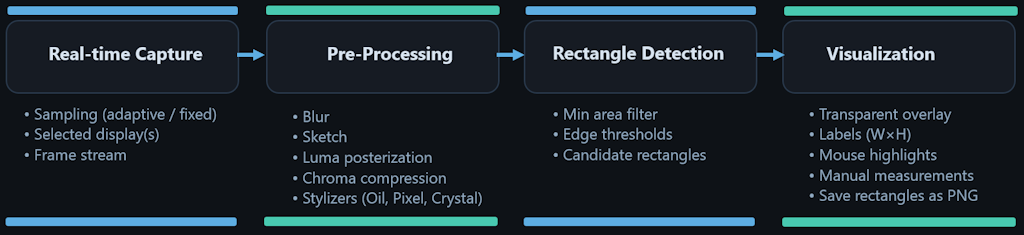
- Capture. The selected display is captured by the GPU, frame after frame.
- Pre-processing. A GPU shader simplifies the frame: posterization, color reduction, blur, sketch and an optional special effect.
- Detection. Edges are found with a Canny detector, then grouped into outlines, and each outline gives a bounding rectangle. Rectangles that are too small, or that cover the whole screen, are dropped.
- Rendering. The overlay draws the outlines and labels on top of the screen.
Advanced settings
A few settings are only useful for fine control, and they are hidden until Advanced Settings is checked in Settings: sampling, the weak edge threshold, blur quality and Oil sampling quality. While they are hidden, sampling stays adaptive and the weak edge threshold is half the edge threshold, so nothing invisible keeps acting.
Sampling
With Adaptive Sampling on, the default, the interval between two analyzed frames follows how long the previous ones took to process, which keeps the load in check. With it off, Fixed Sampling sets the interval between two analyzed frames, from 0 to 2000 ms, 1000 ms by default.
Detection parameters
| Parameter | Range | Default | Effect |
|---|---|---|---|
| Min detection size | 4 to 500 | 30 | Side of the smallest square area kept, in pixels. At 30, rectangles smaller than 30 × 30 = 900 pixels are ignored, whatever their shape. |
| Min save size (Pro) | 0 to 2000 | 0 | Same rule for saving every element: smaller rectangles are detected and shown, but not saved. At 0, all of them are saved. |
| Edge threshold | 0 to 255 | 100 | Contrast above which a pixel is always an edge. |
| Weak edge threshold (advanced) | 0 to 255 | 50 | Contrast below which a pixel is never an edge. Pixels between the two thresholds count only when connected to a strong edge. Without advanced settings, it is half the edge threshold. |
Lower thresholds find fainter edges and more rectangles, higher thresholds keep only the sharpest ones. The pair works together: the weak threshold stitches broken outlines, the strong one decides where outlines start.
Pre-processing
| Parameter | Range | Default | Effect |
|---|---|---|---|
| Luma posterization | 0 to 64 | 16 | Number of brightness levels kept. Fewer levels merge areas of similar brightness, so gradients and shadows stop producing edges. |
| Chroma compression | 1 to 32 | 8 | Number of color levels kept. Fewer levels remove subtle color changes. Around 3 the image is close to grayscale. |
| Blur radius | 0 to 100 | 0 | Blur strength. Removes noise and fine texture, but too much softens the edges you want. |
| Blur quality (advanced) | 0 to 48 | 16 | Smoothness of the blur. Higher is nicer and slower. |
| Sketch size | 0 to 10 | 0 | Size of the area used by the sketch effect, which turns the image into a drawing and reinforces contours. |
| Sketch strength | 0 to 100 | 0 | How strongly the sketch effect marks the contours. |
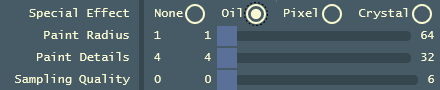
Special effects
An optional effect applied before detection. Each one is meant for a different kind of picture.
| Effect | Parameters | Good for |
|---|---|---|
| None | Application windows and web pages, which already have sharp edges. | |
| Pixel | Block size, 2 to 100 | Pixelates the image. Removes small details such as text, so that panels and large blocks stand out. |
| Oil | Paint radius 1 to 64, paint details 4 to 32, sampling quality 0 to 6 (advanced) | Paints the image in flat areas. Best on photos and textured images. |
| Crystal | Cell size 0 to 100, edge emphasis 0 to 100 | Breaks the image into cells with marked borders. Useful on drawings and irregular shapes. |


Starting points
| Content | Try |
|---|---|
| Application windows | Areas mode, the default. Raise the minimum size if small icons clutter the view. |
| Busy web pages | Areas mode with a higher minimum size. In Edges mode, the Pixel effect with a small block size hides text. |
| Figures on a plain background | Objects mode. |
| Photos | Edges mode with the Oil effect, lower posterization, and a little blur. |
| Plans and drawings | Areas mode for clean digital plans. For scans, Edges mode with lower edge thresholds so thin lines are kept. |
Building a preset for your kind of images
Every kind of image has its own look. Scans, floor plans, microscope images, maps, photos and user interfaces all differ in contrast, noise, texture and line thickness, and no single setting fits them all. The parameters above, and the special effects in particular, are how you teach Automatic Pixel Ruler what matters in your images and what to ignore. Getting it right takes a little practice, but you only do it once per kind of image.
- Open a typical image of the kind you work with, one that has the shapes you want to measure.
- Turn on the pre-processed view , so that you see what the detector sees while you adjust.
- Simplify the image first. Lower the posterization and color levels, and add blur, until noise and texture fade while the outlines you care about remain.
- Try each special effect. Oil tends to suit photographic and scanned content, Pixel hides text and fine detail, Crystal marks the borders of irregular shapes. Adjust the effect's own parameters until the outlines are clean.
- Adjust the edge thresholds, then raise the minimum size until only the shapes you want are left.
- Check the result on two or three other images of the same kind, and correct what they reveal.
- Save the settings as an
.apixrulerpreset with a name that says what it is for, for examplescans.apixrulerorfloorplans.apixruler.
From then on, loading the preset brings back the whole configuration in one step. A preset is also the easiest way to share this work: once one person in a team has tuned it, everyone who opens the file gets the same detection. See Presets.
Settings & Presets
Click in the title bar to open the Settings dialog.
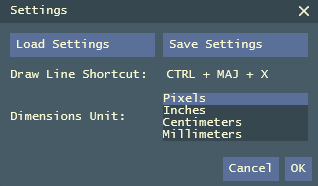
- Dimensions unit. Pixels, inches, centimeters or millimeters, see Units and physical sizes. When a calibration is active, the calibrated unit is shown instead, with a Clear Calibration button.
- Draw line shortcut. The key combination for drawing lines. It must include Ctrl and must not be used by another application. An invalid combination is refused and the previous one is kept.
- Snap Margin. The gap left between the main window and the screen edge it snaps to, from 0 to 200.
- Show Notifications. The short messages next to the mouse pointer. When they are off, the status bar still shows them.
- Show Areas. Adds the area to the label of every rectangle, for example
12 x 8 cm, 96 cm². - Save settings and Load settings, to write the detection parameters to a preset file, or read them back.
- Advanced Settings, to show the settings meant for fine control, see Advanced settings.
Presets
A preset is an .apixruler file holding every detection and pre-processing parameter.
Keep one per kind of work, one for application windows, one for photos, one for plans, and load the one you need.
Presets are plain JSON files and can be shared with colleagues or copied to another computer.
To open presets with a double-click, right-click an .apixruler file in File Explorer,
choose Open with, then Choose another app, select Automatic Pixel Ruler and check Always.
Resetting
The button in the title bar resets every detection parameter to its default value, and clears the calibration, which brings dimensions back to pixels. The other units, the shortcut and the selected display are kept.
Keyboard Reference
These keys work anywhere while the app is running, even when another application has the focus. Left Ctrl, Right Ctrl and Left Shift act when they are pressed and released on their own, so shortcuts in other applications, such as Ctrl+C or a capital letter, never trigger them. Left Shift only does something while a line is being drawn.
| Key | Action |
|---|---|
| Left Ctrl | Make the next highlighted rectangle under the pointer the active one. |
| Right Ctrl | Save the highlighted rectangles as PNG images. On a kept measurement, export it (Pro). |
| Shift+Right Ctrl | Save every detected rectangle, and export every kept measurement (Pro). |
| Shift+Left Ctrl | Delete the kept measurement under the pointer, or all of them. |
| Ctrl+Shift+X | Start or stop drawing a line. Can be changed in Settings. |
| Ctrl+Shift while starting | Put the main window back in its default position. |
The Keyboard Shortcuts button of the About dialog shows the same list in the application, with the key names of your own keyboard.
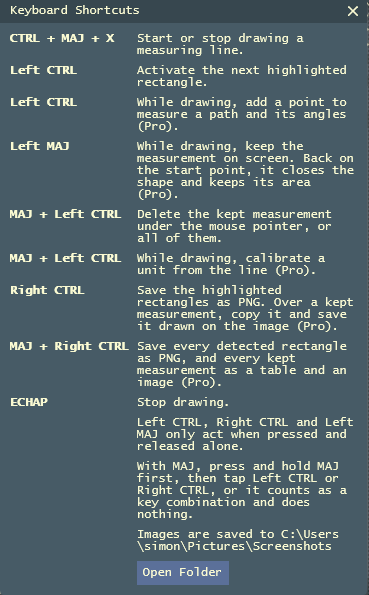
While a line is being drawn:
| Key | Action |
|---|---|
| Left Ctrl | Add a point, to measure a path and its angles (Pro). |
| Left Shift | Keep the measurement on screen. Back on the start point, close the shape and keep its area (Pro). |
| Shift+Left Ctrl | Calibrate a unit from the line (Pro). |
| Esc | Stop drawing. |
Files & Data
| What | Where |
|---|---|
| Settings | %LocalAppData%\Automatic Pixel Ruler\settings.json, saved on every change and on exit. |
| Settings backups | The settings.bak folder next to it, with 30 days of rolling backups. |
| Saved images and exports | The Windows Screenshots folder, usually Pictures\Screenshots. The Open Folder button of the Keyboard Shortcuts dialog opens it. |
| Presets | Wherever you save your .apixruler files. |
To start over from factory settings, close the app and delete settings.json.
Captured frames never leave your computer. They stay in GPU memory and are only written to disk when you save an image.
Troubleshooting
| Problem | What to do |
|---|---|
| "Not supported" at startup | Update Windows to version 2004 or later, see System Requirements. |
| No rectangles appear | Check the Input display and make sure capture is not paused. Try another detection mode. In Edges mode, lower the minimum size and both edge thresholds. |
| Too many rectangles | Raise the minimum size or the edge thresholds, or try the Pixel effect to hide text. |
| An element is not detected | Turn on the pre-processed view and check its edges are visible. Adjust pre-processing or try an effect. |
| Hard to see which rectangle is measured | Press Left Ctrl until the one you want has the filled highlight. |
| Physical units look wrong | The monitor may not report its size, see Units. In a virtual machine, run it full screen at its native resolution. |
| Nothing saved with Right Ctrl | Only highlighted rectangles are saved. Put the pointer over an outlined element first. |
| Drawing a line does not start | Another application may use the shortcut. Choose a different one in Settings. |
| A key shows "is part of Pro" | That feature needs the Pro add-on, see Free and Pro. |
| No CSV file after an export | Exports happen on a kept measurement. Put the pointer on its label before Right Ctrl, or use Shift+Right Ctrl, which exports them all. |
| Overlay is slow, or the GPU is busy | Lower or disable Oil and Blur. With advanced settings shown, keep Adaptive Sampling on. |
| Main window is off screen | Hold Ctrl+Shift while starting the app. |
| Windows 10: clicks do not reach applications | See below. |
Windows 10
On Windows 11 the overlay is invisible to the mouse and the keyboard, and you can keep working in your applications while measuring. Windows 10 does not allow that for this kind of overlay, so while capture is running the overlay takes the mouse and keyboard input.
The taskbar and Alt+Tab still work. To use an application, click to pause capture, then to resume measuring.
Support & Licensing
Click in the title bar to open the About dialog.
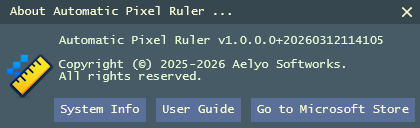
Under the version, the dialog says whether this is the free edition or the Pro edition.
- System Info lists your displays, their DPI, and the app's configuration. Copy it into a support request.
- User Guide opens this page.
- Keyboard Shortcuts lists every key, and where images and exports are saved.
- Get Pro, in the free edition, lists what Pro adds and opens the Microsoft Store purchase of the add-on. In the Pro edition, Go to Microsoft Store opens the app's Store page instead, to leave a review or get support.
Pro is a one-time purchase tied to your Microsoft account, like the app itself. It is recognized on every Windows computer where you sign in to the Microsoft Store with that account.
If the app runs into an unexpected error, it offers to write an anonymous error report to your desktop. Nothing is sent automatically, you decide whether to send the file.
If Automatic Pixel Ruler has made your measuring easier, a quick rating on the Microsoft Store helps other people discover it, and it means a lot to our small team. It takes less than a minute.
★ Rate Automatic Pixel Ruler on the Microsoft Store